
Fixing ‘Invalid Request’ Errors: The Incognito Mode Solution for GoDaddy and Beyond
Have you ever been in the middle of an important online task, like confirming a domain transfer or updating critical contact information, only to be met with a generic and frustrating “Given request is invalid” error? This common technical hiccup can halt your progress, cause significant stress, and leave you wondering what went wrong. For many, this specific error often appears when dealing with sensitive online transactions, especially within platforms like GoDaddy, where secure and accurate data exchange is paramount.
The good news is that while the message itself might seem vague and unhelpful, the solution is often surprisingly simple and quick. Before diving into complex troubleshooting steps or spending valuable time contacting support, there’s one go-to trick that frequently resolves this issue: using your browser’s incognito or private browsing mode. This article will delve into why these errors occur, explain how incognito mode provides a swift remedy, and offer additional tips to keep your online activities running smoothly.
The Frustrating Encounter: My GoDaddy Experience and the ‘Invalid Request’ Message
Recently, I faced this exact predicament while managing several domain name transfers on GoDaddy. As a part of the domain acquisition process from another investor, I needed to click through a series of confirmation links in emails to finalize contact updates and ensure a smooth ownership transition. These steps are crucial for maintaining domain security and compliance, so encountering an error at this stage was particularly vexing.
Each time I clicked a confirmation link, instead of success, a persistent error message appeared: “Given request is invalid. If you feel this is incorrect please try again.” The ambiguity of the message was the most frustrating part. Was it an issue with the link itself? My account? A server problem? My initial attempts to resolve it involved doing the logical things: re-submitting the original request, trying the link multiple times, and even carefully re-checking my GoDaddy account details. None of these common troubleshooting tactics worked, leading to increasing frustration and a potential delay in critical domain operations.
The urgency of these tasks, particularly with domain transfers, meant that finding a quick resolution was paramount. After exhausting the usual avenues, a quick call to my account representative illuminated a simple, yet often overlooked, solution that saved the day. This experience highlighted just how common and easily fixable these ‘invalid request’ errors can be, provided you know the right trick.
Understanding the Root Cause: Why ‘Invalid Request’ Errors Occur
To truly appreciate the simplicity and effectiveness of the incognito mode fix, it’s helpful to understand why these “invalid request” errors happen in the first place. While various factors can contribute to online errors, one of the most common culprits for this specific type of issue, especially with time-sensitive or security-sensitive links, is your browser’s caching mechanism.
What is Browser Caching?
Your web browser (Chrome, Firefox, Edge, Safari, etc.) is designed to be efficient. To speed up your browsing experience, it stores temporary files, images, scripts, and other data from websites you visit. This stored data is known as the “browser cache.” When you revisit a site, your browser can load some elements from its cache instead of downloading them again from the server, resulting in faster page loads and a smoother user experience.
The Downside: Stale Data and Session Conflicts
While caching is generally beneficial, it can sometimes work against you. When you’re dealing with dynamic content, secure links, or operations that involve unique session tokens (like confirming a domain transfer or a password reset), stale or outdated cached data can cause a conflict. Here’s how:
- Session Mismatch: Many online services use “sessions” to track your activity. When you click a confirmation link in an email, that link might contain a unique, time-sensitive token tied to your current session. If your browser loads old session data from its cache, or if your current session has expired, the server will receive a request that doesn’t match its expected session state or token, resulting in an “invalid request” error.
- Expired Cookies: Websites also use cookies to store small pieces of information about your preferences and login status. If your browser holds onto an old or expired cookie for a particular site, it can send incorrect information with your request, leading to rejection.
- Security Tokens: For actions like domain transfers or contact updates, robust security measures are in place. This often involves one-time use links or dynamically generated security tokens. If your browser’s cached version of a page or its stored cookies interfere with the generation or transmission of these tokens, the server will deem the request invalid to prevent unauthorized access.
- Temporary Glitches: Less frequently, the error might stem from a temporary server-side glitch or a brief interruption in your network connection. However, when it’s persistent and happens specifically with confirmation links, caching is often the primary suspect.
In essence, your browser might be trying to be too helpful by reusing old information, but the server expects fresh, up-to-date data for critical operations. This mismatch is where incognito mode steps in as a powerful and simple solution.
The Simple Solution: Embracing Incognito or Private Browsing
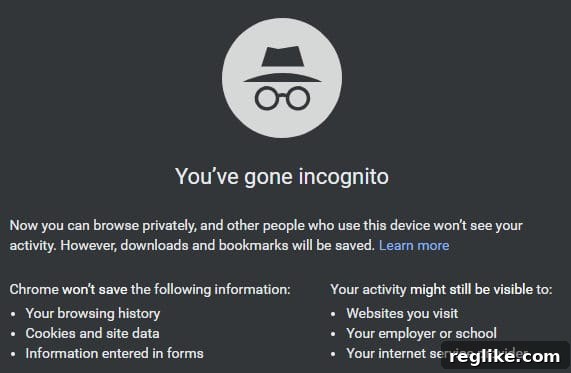
The recommended fix for these caching-related ‘invalid request’ errors is incredibly straightforward: use your web browser’s incognito or private browsing mode. This approach works because private browsing windows are designed to operate without using your existing cache, cookies, or browsing history.
How Incognito/Private Browsing Works
When you open an incognito (Google Chrome), Private Window (Mozilla Firefox, Safari), or InPrivate (Microsoft Edge) session, your browser essentially starts with a clean slate. It doesn’t access your stored cookies, temporary internet files, or browsing history from your regular session. This means:
- Fresh Session: Any request you make in an incognito window is treated as if you’re visiting the website for the very first time, without any pre-existing session data influencing the interaction.
- No Cached Data: The browser won’t use any old cached files, forcing it to fetch all resources directly from the server.
- New Cookies: While in incognito mode, new cookies can be stored, but they are deleted as soon as you close the private window, ensuring no lingering data for future sessions.
Step-by-Step Guide to Applying the Fix:
- Copy the Link: Locate the problematic link in the email or on the webpage (e.g., the GoDaddy confirmation link). Right-click on it and select “Copy Link Address” or “Copy Link.”
- Open an Incognito/Private Window:
- Google Chrome: Click the three vertical dots (Menu) in the top-right corner, then select “New incognito window,” or use the shortcut
Ctrl+Shift+N(Windows/Linux) /Cmd+Shift+N(Mac). - Mozilla Firefox: Click the three horizontal lines (Menu) in the top-right corner, then select “New Private Window,” or use the shortcut
Ctrl+Shift+P(Windows/Linux) /Cmd+Shift+P(Mac). - Microsoft Edge: Click the three horizontal dots (Menu) in the top-right corner, then select “New InPrivate window,” or use the shortcut
Ctrl+Shift+N(Windows/Linux). - Apple Safari: Click “File” in the menu bar, then select “New Private Window,” or use the shortcut
Cmd+Shift+N.
- Google Chrome: Click the three vertical dots (Menu) in the top-right corner, then select “New incognito window,” or use the shortcut
- Paste and Go: Once the private browsing window is open, paste the copied link into the address bar and press Enter.
In most cases, this simple action will bypass the caching issue, allowing the server to correctly process your request, and the “invalid request” error will vanish. It certainly worked for me with the GoDaddy domain transfer confirmations, providing instant relief and allowing me to proceed with the critical updates.
Beyond GoDaddy: Where Else This Fix Can Help
While my initial encounter with the ‘invalid request’ error was specifically with GoDaddy, the underlying principle of caching and session data applies across the web. This means the incognito mode fix isn’t exclusive to domain registrars; it’s a valuable troubleshooting technique for a wide array of online platforms and scenarios where you might encounter similar errors. Consider using this trick in the following situations:
- Online Banking and Financial Transactions: If you’re struggling to log in, confirm a transaction, or access specific sections of your online banking portal, an expired session or cached data could be the culprit.
- E-commerce Checkout Processes: Ever had an item disappear from your cart or received an error message during the final payment step? Cached information can sometimes interfere with dynamic cart contents or payment gateway interactions.
- Email Confirmation Links: Beyond domain services, many websites send email links for account verification, password resets, or newsletter subscriptions. If these links consistently fail, a private browsing window can often help.
- Login Portals and Admin Panels: For content management systems (CMS) like WordPress, e-learning platforms, or SaaS applications, session timeouts are common. If you get an “invalid session” or “request expired” message, incognito mode can offer a fresh login attempt.
- Form Submissions: Any complex web form that involves multiple steps or dynamic fields can be susceptible to caching issues if you leave it open for too long or encounter network hiccups.
- Travel Booking Sites: Prices and availability change rapidly on travel sites. Cached data could lead to errors when trying to book a flight or hotel if the information you’re viewing is no longer current on the server.
By making incognito mode your go-to first step for generic online errors, you’ll often save yourself considerable time and frustration, quickly isolating whether the problem is browser-related or something more complex.
Other Troubleshooting Steps When Incognito Fails
While incognito mode is a powerful solution for many ‘invalid request’ errors, it’s not a silver bullet for every online problem. If trying a private browsing window doesn’t resolve your issue, here are some other comprehensive troubleshooting steps you can take:
- Clear Your Entire Browser Cache and Cookies:
If only a specific website is giving you trouble, you might be able to clear cache/cookies just for that site. However, for a more thorough clean, you can clear all cached data. Be aware that this will log you out of most websites and remove saved form data.
- Chrome/Edge: Go to Settings > Privacy and security > Clear browsing data. Select “Cookies and other site data” and “Cached images and files.” Choose “All time” for the time range.
- Firefox: Go to Options > Privacy & Security > Cookies and Site Data > Clear Data. Check both boxes.
- Safari: Go to Safari > Preferences > Privacy > Manage Website Data > Remove All. Then, go to Safari > Preferences > Advanced > Show Develop menu in menu bar. In the Develop menu, select “Empty Caches.”
- Try a Different Browser:
Sometimes, the issue might be specific to your current browser’s configuration, extensions, or an internal bug. Try replicating the problem in a completely different browser (e.g., if you’re using Chrome, try Firefox or Edge).
- Disable Browser Extensions:
Certain browser extensions, especially ad-blockers, security extensions, or VPN extensions, can sometimes interfere with website functionality, particularly with dynamic content or secure connections. Try disabling all extensions and then re-enable them one by one to identify the culprit.
- Check Your Internet Connection:
Ensure your internet connection is stable. A fluctuating or weak connection can lead to incomplete requests and errors. Try restarting your router/modem.
- Restart Your Computer:
The classic IT advice works for a reason. A full system restart can clear out temporary system glitches and refresh network settings that might be contributing to the problem.
- Check for Software Updates:
Ensure your browser and operating system are up to date. Updates often include bug fixes and security patches that can resolve underlying compatibility issues.
- Contact the Website’s Support:
If none of the above solutions work, it’s time to contact the support team for the website or service you’re trying to use (e.g., GoDaddy support). Provide them with as much detail as possible: the exact error message, what you were trying to do, the browser(s) you’ve tried, and the troubleshooting steps you’ve already taken. This information will help them diagnose the issue more quickly.
Preventative Measures and Best Practices for a Smoother Online Experience
While troubleshooting is essential, adopting a few best practices can help minimize the occurrence of ‘invalid request’ and similar errors in the first place, ensuring a more seamless online experience:
- Log Out Properly: Always log out of sensitive accounts (banking, email, domain registrars) when you’re finished, especially on shared computers. This helps terminate your session correctly and prevents stale session data.
- Avoid Long Inactivity: For critical tasks, try to complete them within a reasonable timeframe. Many websites have security measures that automatically log you out or expire your session after a period of inactivity.
- Keep Your Browser Updated: Regularly update your web browser. Developers frequently release updates that improve performance, enhance security, and fix bugs that could lead to unexpected errors.
- Use Reliable Internet: A stable internet connection is fundamental. If you frequently encounter issues, consider checking your network hardware or internet service provider.
- Be Mindful of Extensions: While many extensions are helpful, be selective about what you install. Too many extensions, or poorly coded ones, can sometimes lead to conflicts.
- Understand Cache Management: Periodically clearing your browser’s cache (perhaps once a month, or if you notice consistent performance issues) can keep your browser running optimally.
Conclusion
Encountering an “invalid request” error can be a major roadblock, particularly when dealing with critical online operations like domain transfers or important account updates. However, the next time you face this perplexing message, remember the simple power of incognito or private browsing mode.
By providing a clean, fresh browsing environment, incognito mode bypasses common caching and session issues that often cause these errors, allowing you to complete your tasks quickly and efficiently. While it’s not the only troubleshooting tool in your arsenal, it’s an incredibly effective first step that can save you significant time and frustration. Equip yourself with this knowledge, and enjoy a smoother, less error-prone journey across the digital landscape.