
Mastering Your NamesCon Experience: Seamlessly Sync Your Schedule with Sched
Attending a premier industry event like NamesCon can be an exhilarating yet overwhelming experience. With a packed agenda featuring insightful keynotes, engaging workshops, and critical networking opportunities, managing your time effectively is paramount. Missing out on a crucial session or a valuable connection due to a disorganized schedule is a common pitfall. Fortunately, there’s an elegant solution designed to simplify your event planning: Sched. This intuitive tool is your indispensable companion for navigating the dynamic NamesCon schedule, ensuring you make the most of every moment.
Sched offers a streamlined approach to personalizing your conference agenda and integrating it directly with your personal calendar. Gone are the days of juggling multiple printouts or struggling with complex spreadsheets. With Sched, you can effortlessly select the sessions that align with your professional goals and personal interests, then watch as they magically appear in your preferred calendar application. Even better, Sched’s intelligent synchronization capabilities mean that any last-minute changes to the NamesCon agenda – be it a new speaker, a revised time slot, or an updated room – are automatically reflected in your calendar, keeping you perfectly informed and prepared.
Imagine the peace of mind knowing your entire NamesCon itinerary is meticulously organized and accessible at your fingertips, whether you’re planning your day from your hotel room or on the go between sessions. This guide will walk you through the simple, yet powerful, steps to harness Sched’s capabilities, transforming your NamesCon planning from a chore into a seamless experience. Get ready to optimize your conference journey, maximize learning, and carve out essential time for strategic networking.
Why Sched is Your Ultimate NamesCon Planning Ally
Before diving into the how-to, let’s explore the compelling reasons why Sched has become an essential tool for NamesCon attendees year after year. It’s more than just a calendar sync utility; it’s a comprehensive platform designed to enhance your entire conference experience:
- Personalized Agenda Creation: Sched allows you to browse the full NamesCon agenda and cherry-pick the sessions that resonate most with your objectives. This personalization ensures you focus on what truly matters to your professional development.
- Real-Time Updates and Notifications: Events are dynamic, and changes can occur. Sched ensures your personalized schedule is always up-to-date. If a session time shifts or a room changes, your calendar reflects these updates automatically, saving you from potential confusion and missed opportunities.
- Efficient Time Management: By having your sessions clearly laid out in your personal calendar, you can easily identify gaps for impromptu meetings, networking breaks, or simply unwinding. This holistic view prevents overbooking and allows for more strategic time allocation.
- Accessibility Across Devices: Once synced, your NamesCon schedule is available wherever your personal calendar is – on your smartphone, tablet, or desktop. This universal access ensures you’re always informed, no matter your location within the conference venue.
- Enhanced Networking Opportunities: Knowing your schedule inside and out means you can confidently commit to meeting times with other attendees, speakers, or potential partners. This level of organization projects professionalism and maximizes your chances of valuable interactions.
Now, let’s get down to the practical steps of setting up your personalized NamesCon schedule with Sched.
Step-by-Step Guide: Syncing Your NamesCon Schedule with Your Personal Calendar
1. Sign Up or Log In: The Gateway to Your Personalized Schedule
The first and most crucial step is to access Sched via the official NamesCon agenda page. While seemingly straightforward, it’s an easy detail to overlook amidst the excitement of planning. Creating an account or logging into an existing one with Sched is what allows the platform to save your personalized session selections and preferences, ensuring a consistent experience across all your devices and future visits.
Navigate directly to the NamesCon agenda page. Look for the prominent “Sign Up” or “Log In” options. These are typically located at the top of the page or clearly marked within the Sched interface embedded on the agenda page. Establishing your account is the foundation for building your tailored conference journey.

Upon successful login, you’ll gain access to the full spectrum of Sched’s features, ready to begin curating your ideal NamesCon experience.
2. Curate Your Personalized Agenda: Selecting Your Must-Attend Sessions
With your Sched account ready, it’s time for the exciting part: browsing the comprehensive NamesCon schedule and marking the sessions you wish to attend. Sched’s interface is designed for intuitive navigation, making it simple to find what you’re looking for.
As you scroll through the agenda, you’ll notice a checkbox or a similar selection mechanism next to each session title. Simply click on this box for every keynote, panel, workshop, or presentation you intend to join. Your selections are automatically saved to your personal Sched schedule.
To enhance your browsing experience, Sched often provides flexible display options. Look for a dropdown menu, often labeled “Schedule” or “View,” typically located at the top of the agenda page. This allows you to change how the schedule is presented, offering views like:
- Daily View: See all sessions for a specific day.
- Track View: Filter sessions by specific themes or tracks (e.g., “Domain Investing,” “Legal & Policy,” “Web3”).
- Speaker View: Browse sessions by speaker to follow your favorite experts.
- List View: A simple, scrollable list of all sessions.
Experiment with these display options to find the most effective way to navigate and make your selections. This flexibility ensures you can efficiently plan your time and identify any potential conflicts between desired sessions before syncing.
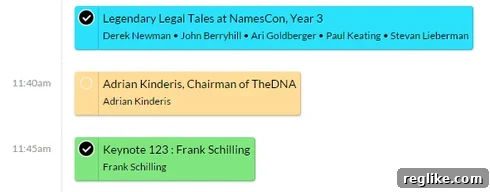
Take your time here. This is where you craft the core of your NamesCon journey. Remember, you can always go back and modify your selections if your plans change.
3. Initiate the Synchronization Process: Locating the Export Option
Once you’ve meticulously selected all the NamesCon sessions you wish to attend and built your ideal schedule within Sched, the next step is to export this personalized agenda to your preferred calendar application. This crucial action bridges the gap between your Sched planning and your daily time management tools.
To begin the synchronization process, direct your attention to the upper right-hand corner of the Sched interface on the NamesCon agenda page. You will typically find a distinctive icon that represents the export or synchronization function. While the original content refers to it as a “phone icon,” in many Sched implementations, this might appear as a small calendar icon, a share icon, or an icon depicting a down arrow, indicating an export function. The visual cue is designed to be intuitive, signaling that this is where you can connect your Sched agenda to other applications.
Clicking this icon will reveal a menu of options related to exporting or sharing your schedule. This step is the gateway to integrating your NamesCon plans seamlessly into your digital life.

The clarity of this step ensures that users can easily transition from agenda planning to practical calendar integration, setting the stage for the final synchronization.
4. Choose Your Calendar Integration Method: iCal Link or Automatic Import
After clicking the export icon, Sched will present you with the various methods available for integrating your personalized NamesCon schedule into your personal calendar. You’ll typically be given two primary options, catering to different calendar preferences and technical comfort levels:
Option A: Obtain an iCal Link (Recommended for broad compatibility)
An iCal link (often denoted as .ics) is a standardized format for calendar data exchange. This link acts as a subscription feed for your calendar. You can copy this unique URL and paste it into virtually any modern calendar program that supports calendar subscriptions. Popular applications like Apple Calendar (formerly iCal), Microsoft Outlook (desktop client), Google Calendar, and many other web-based or desktop calendar solutions are fully compatible with iCal feeds.
To use this method:
- Click on the option to “Get iCal Link” or “Copy iCal URL.”
- Copy the provided link to your clipboard.
- Open your preferred calendar program.
- Look for an option to “Add Calendar,” “Subscribe to Calendar,” or “From URL.”
- Paste the iCal link into the designated field and confirm.
The beauty of the iCal link is its robust synchronization. Any changes made to the NamesCon schedule within Sched will automatically update in your subscribed calendar, usually within a few minutes or hours, depending on your calendar application’s refresh settings.
Option B: Click to Automatically Import (Convenient for popular web calendars)
Sched often provides direct links that, when clicked, automatically trigger the import process for popular web-based calendar services like Google Calendar, Outlook.com, or Yahoo Calendar. This method is incredibly convenient as it bypasses the manual copying and pasting of the iCal link.
To use this method:
- Click on the specific link provided for your desired calendar service (e.g., “Add to Google Calendar,” “Add to Outlook Calendar”).
- Your browser will typically open a new tab or window, prompting you to confirm the addition of the Sched calendar to your account.
- Follow any on-screen instructions to authorize and complete the import.
Important Note on Troubleshooting: If clicking an automatic import link doesn’t seem to work, or if nothing happens, try right-clicking on the link and selecting “Open Link in New Tab” or “Open Link in New Window.” This can sometimes resolve issues related to browser security settings, pop-up blockers, or default application associations that might prevent the direct click from functioning as intended.
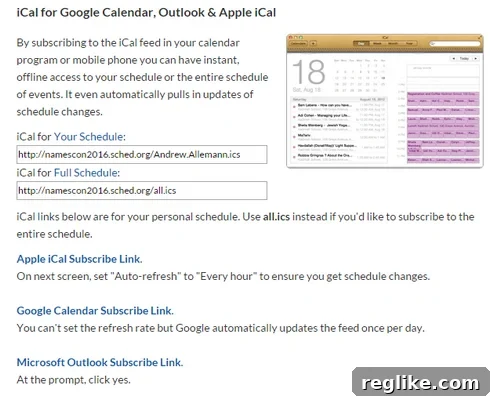
Select the method that best suits your preferred calendar application and workflow. Both options provide an effective way to integrate your NamesCon schedule, ensuring you have a dynamic and up-to-date itinerary.
5. Verify Your Synced Schedule and Mind the Time Zones
Once you’ve successfully followed the previous steps and imported or subscribed to your NamesCon schedule, open your personal calendar application to confirm that all your chosen sessions have appeared. Take a moment to visually inspect the entries, ensuring that all the session titles, times, and locations (if provided) are correctly displayed.
Crucial Consideration: Time Zones
This is perhaps the most vital point to remember when integrating any event schedule, especially for an international conference like NamesCon held in a specific location (e.g., Las Vegas). Your personal calendar application will almost certainly display the session times in your current local time zone, not necessarily the time zone of the event venue (Pacific Time for Las Vegas).
For example, if you are attending NamesCon from the East Coast of the United States (Eastern Time, ET), a session scheduled for 9:00 AM Pacific Time (PT) in Las Vegas will likely appear as 12:00 PM ET in your personal calendar. This automatic conversion is a feature designed for your convenience but requires awareness to avoid confusion, especially when planning other activities around your sessions.
To ensure clarity and prevent scheduling conflicts:
- Double-Check Your Calendar Settings: Most calendar applications allow you to temporarily view events in different time zones or adjust your default time zone settings. Familiarize yourself with these options before and during the conference.
- Plan Meetings with Awareness: When scheduling networking meetings, lunches, or dinners with other attendees, always confirm whether you are discussing times in “Las Vegas Time” or your respective “Local Time.” It’s good practice to state the time zone explicitly to avoid misunderstandings.
- Internalize the Time Difference: Before the conference, make a mental note of the time difference between your home time zone and Las Vegas time. This will help you quickly calculate actual session start times relative to your current location if you are viewing your calendar from outside the venue’s time zone.
This attention to time zones will save you from potential missteps and ensure that you arrive promptly for all your selected NamesCon sessions and other engagements.
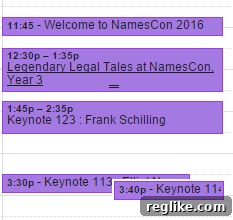
With your schedule now fully integrated and time zone considerations understood, you are perfectly equipped to navigate NamesCon with precision and confidence.
Beyond the Sync: Maximizing Your NamesCon Experience
Successfully syncing your NamesCon schedule is a powerful first step, but Sched offers benefits that extend throughout the conference. Here are a few additional tips to truly maximize your experience:
- Stay Agile with Real-time Updates: As mentioned, Sched’s ability to push real-time updates to your subscribed calendar is invaluable. Keep an eye on your calendar for any notifications regarding changes to session times, locations, or even cancellations. This adaptability is key to a smooth conference experience.
- Identify Networking Gaps: With your sessions clearly marked, you can easily spot open blocks of time in your schedule. Use these strategically for impromptu coffee meetings, visiting sponsor booths, or simply taking a well-deserved break. A well-planned schedule creates opportunities for organic networking.
- Bookmark Key Sessions: Even if you don’t attend every single session you mark, adding them to Sched helps you quickly access details like speaker bios, session descriptions, and venue information directly from your personalized agenda.
- Mobile Access is Key: Download the Sched app (if available) or ensure you can access your personal calendar readily on your smartphone. Being able to pull up your schedule quickly while on the move is essential for staying organized at a bustling conference.
- Engage with the Sched Platform: Some Sched implementations allow for comments, ratings, or even direct messaging with speakers or other attendees. Explore these features to deepen your engagement with the NamesCon community.
Conclusion: Your Empowered NamesCon Journey Awaits
NamesCon represents a significant opportunity for learning, growth, and networking within the domain industry. By leveraging a robust and user-friendly tool like Sched, you empower yourself to navigate this dynamic event with unparalleled efficiency and confidence. The ability to craft a personalized agenda, benefit from real-time updates, and seamlessly integrate your schedule into your daily life ensures that you can focus on what truly matters: absorbing valuable insights, forging new connections, and advancing your professional journey.
Don’t let the complexity of a packed conference schedule detract from your experience. Take the few simple steps outlined above to transform your NamesCon planning. Sync your schedule with Sched today, and step into NamesCon prepared, organized, and ready to make the absolute most of every moment. Your optimized conference experience begins now.