
Master Your iPhone Keyboard: Unlocking the Essential .com Shortcut and Advanced Typing Efficiency
Are you among the millions of iPhone and iPad users who navigate the digital world daily, sending emails, browsing websites, and filling out countless online forms? If so, you’ve likely encountered the minor, yet recurring, friction of typing out common domain suffixes like “.com,” “.org,” or “.net.” While seemingly insignificant in isolation, these tiny moments of inefficiency accumulate, slowing down your overall productivity and potentially detracting from the otherwise seamless iOS experience. What if there was a simple, lightning-fast method to insert these suffixes with just a tap?
Indeed, there is! Many users, particularly those new to Apple’s ecosystem or even long-time iPhone owners who might have missed a crucial tip, are often unaware of a powerful built-in keyboard shortcut designed to streamline this very task. This article will not only reveal how to quickly insert “.com” and other domain suffixes on your iOS device but will also delve into a treasure trove of other advanced keyboard tips that can fundamentally transform your mobile typing speed and accuracy. Prepare to unlock a new level of efficiency on your iPhone or iPad.
The Evolution of iOS Keyboard Shortcuts: From Physical Buttons to Intuitive Gestures
The journey of personal technology often involves constant refinement, and the iPhone keyboard is a prime example. For many years, iPhones and iPads featured a dedicated “.com” key prominently displayed on the keyboard, a convenience that users grew accustomed to. It was a straightforward, single-tap solution for the most ubiquitous top-level domain.
However, with the release of iOS 7, Apple embarked on a significant redesign, refreshing the user interface and streamlining various elements. As part of this overhaul, the physical “.com” button was removed from the standard keyboard layout. This change, while aesthetically driven and aimed at decluttering the interface, initially left many users feeling a small void in their typing workflow. The accustomed shortcut was gone, leading some to believe that the convenience of quick suffix insertion had been lost entirely. Yet, as with many Apple updates, a new, more versatile and arguably more elegant solution was already in place, waiting to be discovered.
For individuals making the transition from other mobile operating systems, such as Android, the initial learning curve for iOS can be both exciting and challenging. Each platform has its unique quirks and shortcuts. When I personally made the switch from Android to an iPhone 6 last week, diving into iOS 8, I quickly realized the value of Apple’s thoughtful design in guiding new users. iOS 8, in particular, introduced a dedicated “Tips” app, a valuable resource designed to help users, both new and old, discover hidden features and maximize their device’s potential. This app periodically delivers helpful usage tips directly to your device, making the learning process incremental and engaging.
It was through one such push notification from the “Tips” app, the 10th in a helpful series, that I, like countless others, rediscovered this indispensable shortcut. The tip highlighted a method for quickly inserting “.com” and other common suffixes directly from the keyboard – a feature that, despite the removal of the dedicated button in iOS 7, had been thoughtfully preserved and enhanced in iOS 8 and subsequent versions.
Unlocking the .com Shortcut: A Step-by-Step Guide to Instant Domain Suffixes
The beauty of this particular iOS keyboard shortcut lies in its simplicity and intuitiveness. It’s a gesture-based action that, once learned, becomes second nature, shaving precious seconds off your typing time whenever you need to input a web address or email domain. Forget repeatedly tapping “period,” then “c,” then “o,” then “m” – those days are over. Here’s how to master this essential productivity hack:
- Activate the Keyboard: Begin by tapping into any text field where you would typically type, such as a web browser’s address bar, an email composer, or a form field that requires a domain name. This will bring up the standard iOS keyboard.
- Locate the Period Key: On the bottom row of your keyboard, typically to the left of the spacebar, you’ll find the period (
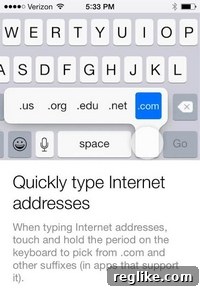
.) key. This is the key we’ll be interacting with. - Press and Hold: Instead of a quick tap, gently press down on the period key and hold your finger there for approximately one second. You’ll notice a small pop-up menu appear directly above your finger.
- Slide to Select: While still holding your finger down, slide it across the pop-up menu. You’ll see a selection of common domain suffixes appear, including:
.com(for commercial websites).us(for United States specific domains).org(for organizational websites, often non-profits).edu(for educational institutions).net(for network-related services, or general use)
Simply slide your finger to the desired suffix and then lift your finger. The chosen suffix will be instantly inserted into your text field.
This method is not only faster but also significantly reduces the chances of typos, ensuring accuracy when entering critical web addresses or email recipient details. It’s a prime example of how small design considerations can lead to substantial improvements in user experience and efficiency.
Beyond .com: Elevating Your Overall iOS Typing Efficiency with More Shortcuts
While the “.com” shortcut is undeniably a gem, the iOS keyboard is replete with a multitude of other powerful features and shortcuts designed to accelerate your typing and enhance your overall productivity. Mastering these will transform your iPhone into an even more potent communication and creation tool.
1. Text Replacement: Your Custom Typing Accelerators
Perhaps one of the most powerful yet underutilized features is “Text Replacement” (sometimes called “Keyboard Shortcuts”). This allows you to create custom shortcuts for frequently typed phrases, words, or even entire paragraphs. For instance, you could set “omw” to automatically expand to “On my way!”, or “eml” to insert your full email address. This drastically cuts down on repetitive typing.
- How to set up: Go to
Settings > General > Keyboard > Text Replacement. Tap the+icon, enter your full Phrase, and then your Shortcut. - Examples:
- Shortcut:
@@, Phrase:[email protected] - Shortcut:
addrs, Phrase:123 Main Street, Anytown, State, ZIP - Shortcut:
tyvm, Phrase:Thank you very much!
- Shortcut:
2. Quick Capitalization and Punctuation Mastery
iOS offers several intelligent features for capitalization and punctuation:
- Double-Tap Space for Period: A classic shortcut. Tapping the spacebar twice consecutively will automatically insert a period and a space, ready for your next sentence.
- Quick Capitalization: To type a single capital letter, tap the Shift key, then type your letter. To type multiple capital letters (Caps Lock), double-tap the Shift key until the arrow illuminates. Double-tap again to deactivate.
- Symbol Access via Hold: Many keys on the standard keyboard hide additional characters. Press and hold certain keys (e.g.,
eforé, è, ê;-for—, –;?for¿) to reveal and select alternative characters or symbols.
3. Leveraging Predictive Text (QuickType)
Introduced in iOS 8, the QuickType bar above your keyboard offers context-aware suggestions for your next word, emoji, or even phrase. As you type, it learns your writing style, vocabulary, and common phrases, becoming increasingly accurate over time.
- How to use: Simply tap on a suggested word in the QuickType bar to insert it into your text.
- Dismissing suggestions: If you find the bar distracting, you can swipe down on it to hide it, and swipe up to bring it back.
4. Dictation: Speak Your Mind
For moments when typing feels too cumbersome or when you’re multitasking, iOS dictation allows you to convert your spoken words into text. This feature is incredibly accurate and supports multiple languages.
- How to use: Tap the microphone icon, usually located to the left of the spacebar (or next to the period key on some layouts). Speak clearly, and your words will appear as text. Tap the keyboard icon again to stop dictation and return to typing.
5. Easy Access to Numbers and Symbols
Switching between the alphabet, numbers, and symbols can interrupt your flow. iOS streamlines this:
- Temporary Number/Symbol Mode: Instead of tapping the
123key to switch to the number/symbol keyboard, then tappingABCto return, you can simply tap and hold the123key, slide your finger to the number or symbol you need, and then lift your finger. The keyboard will automatically revert to the alphabet layout after inserting your selection. This saves two taps for every symbol or number you need to insert individually.
Why Mastering iOS Keyboard Shortcuts Matters for Every User
The cumulative effect of these small efficiencies cannot be overstated. In an era where mobile devices are central to communication, work, and personal organization, every second saved and every error prevented contributes to a smoother, more enjoyable user experience. Here’s why embracing these keyboard shortcuts is crucial:
- Enhanced Productivity: Typing faster and more accurately means you can accomplish tasks more quickly, whether it’s drafting an important email, responding to messages, or inputting data.
- Reduced Frustration: Fewer typos and less fumbling for specific keys lead to a more fluid and less frustrating interaction with your device. This translates to a better overall mobile experience.
- Improved Accuracy: Shortcuts like the “.com” suffix inserter minimize human error, ensuring that your web addresses and email domains are correct the first time.
- Cognitive Load Reduction: When you automate repetitive tasks with shortcuts, your brain is freed up to focus on the content of your message rather than the mechanics of typing.
- Accessibility Benefits: For users with certain accessibility needs, reducing the number of taps or complex gestures can make typing significantly easier and more comfortable.
- Professionalism: Quickly and accurately composed messages leave a more professional impression, especially in work-related communications.
Embracing the “Tips” App and a Culture of Continuous Learning
The story of rediscovering the “.com” shortcut through the iOS “Tips” app highlights a larger truth: technology is constantly evolving, and even seemingly minor features can significantly enhance our daily interactions with our devices. The “Tips” app, particularly for new iOS users, serves as an invaluable guide, pushing timely and relevant advice to help you navigate and master your new operating system. But its utility isn’t limited to newcomers; even seasoned iPhone veterans can often discover new tricks they never knew existed.
We encourage you to regularly check your “Tips” app, explore the iOS settings, and experiment with different gestures and features on your keyboard. Apple’s commitment to intuitive design often means that efficiency-boosting tools are subtly integrated, waiting to be discovered by an inquisitive user.
Conclusion: Unlock Your iPhone’s Full Potential
From the immediate gratification of the “.com” shortcut to the profound efficiency gains from text replacement and intelligent dictation, the iOS keyboard is a sophisticated tool designed to keep pace with your digital life. By integrating these simple yet powerful techniques into your daily routine, you’ll not only type faster and more accurately but also gain a deeper appreciation for the thoughtful engineering behind your iPhone or iPad.
So, take a moment right now. Open a note, an email, or your web browser, and try out the press-and-hold period trick for yourself. Then, dive into your settings to create a few text replacements. You’ll be amazed at how quickly these small changes can add up, transforming your iOS device from a mere gadget into a truly powerful extension of your productivity. Happy typing!