
Embracing the Future: Mastering GoDaddy’s New Domain Manager
For a significant period, GoDaddy customers have had the option to explore the company’s “new” domain manager. However, a recent, pivotal shift has officially retired the legacy account management interface, compelling all users to transition to the updated dashboard. This move, while perhaps initially met with resistance from those accustomed to the old system, marks a clear evolution in how GoDaddy empowers its users to manage their invaluable digital assets.
Change, in any aspect of life or technology, often presents a learning curve. For domain investors, businesses, and individuals managing even a handful of domain names, adapting to a new interface for such a critical task can feel daunting. This comprehensive guide aims to smooth that transition, providing invaluable tips and strategies to efficiently navigate and leverage the full potential of GoDaddy’s enhanced domain manager. By understanding its key features and adopting best practices, you can transform initial frustration into streamlined, powerful domain portfolio management.
Understanding the Evolution: Why a New GoDaddy Domain Manager?
GoDaddy, as one of the world’s leading domain registrars, continually strives to enhance user experience, security, and the overall functionality of its services. The introduction and eventual mandatory adoption of the new domain manager are likely driven by several factors:
- Modern User Interface (UI) and Experience (UX): A contemporary design offers better readability, intuitive navigation, and a more visually appealing dashboard, crucial for managing potentially hundreds or thousands of domain names.
- Enhanced Performance: Newer platforms often benefit from optimized codebases, leading to faster loading times and more responsive interactions, especially critical when dealing with large domain portfolios.
- Scalability and Future-Proofing: A redesigned architecture allows for easier integration of new features, security updates, and adaptability to evolving web standards and customer needs.
- Improved Mobile Responsiveness: A modern interface is typically designed to perform seamlessly across various devices, including desktops, tablets, and smartphones, offering flexibility to manage domains on the go.
For domainers and businesses, an efficient domain manager isn’t just a convenience; it’s a necessity. It dictates how quickly you can renew domains, update DNS records, transfer ownership, and ensure the continuous online presence of your websites and services. Mastering this new tool is paramount for maintaining control and maximizing the value of your digital investments.
Mastering Bulk Actions: The Core of Efficient Domain Management
One of the most significant time-saving capabilities in any robust domain management system lies in its ability to handle multiple domains simultaneously. GoDaddy’s new dashboard excels in this area, though the method for initiating these bulk actions has been refined.
1. Bulk Search: Isolating Specific Domains for Action
Just like its predecessor, the new interface allows you to efficiently identify and select numerous domain names at once for various tasks. However, the exact procedure for selecting these domains has evolved, offering a cleaner and more direct approach.
To perform a bulk search within your domain portfolio, simply paste a list of the desired domain names directly into the search bar. The system is designed to intelligently parse your input. You have two primary ways to format your list for optimal recognition:
- Space-Separated List: Place a single space between each domain name in your list. For example:
domain1.com domain2.net domain3.org - Line-Separated List: Paste a list where each domain name resides on its own line. This is often convenient when copying from a text file or spreadsheet column. For example:
domain1.com
domain2.net
domain3.org
Crucially, when compiling your list, ensure you do not use commas between domain names. The system interprets commas as part of a single search query, which will prevent it from identifying individual domains correctly. Once entered, the search results will be refined to display only the selected domains, making it effortless to focus on a specific subset of your portfolio without distraction.
This feature is invaluable for a multitude of scenarios, such as:
- Quickly checking the status or configuration of a specific set of domains.
- Preparing a group of domains for a bulk renewal or transfer.
- Isolating domains belonging to a particular project or client.

Once your domains are selected, the new manager provides clear options to initiate bulk actions, whether it’s updating nameservers, adjusting auto-renew settings, or modifying privacy protections. This centralized control over multiple assets drastically cuts down on the administrative time typically associated with large portfolios.
Customizing Your Overview: The Power of “Edit Columns”
Understanding your domain portfolio at a glance is critical for effective management. GoDaddy’s new domain manager allows you to tailor the information displayed for each domain through the “Edit Columns” feature, ensuring you always see the most pertinent data relevant to your specific needs.
Clicking on “Edit Columns” will present you with a variety of data points you can choose to display or hide. This level of customization empowers you to transform a generic list into a highly personalized and informative dashboard. Here are some particularly helpful columns you might consider enabling:
- Create Date: This column reveals the original registration date of the domain based on Whois records. For domain investors, this is crucial for understanding a domain’s age, which can influence its perceived value, and for tracking its historical data. It also helps in identifying older, more established domains within your portfolio.
- Nameservers: Instantly seeing which nameservers a domain is pointing to is immensely useful. It allows for quick verification that a domain is correctly configured to point to your hosting provider, CDN, or specific DNS management service. This is a powerful tool for troubleshooting website downtime or ensuring development domains are pointed to the right environment. Spotting a domain pointing to incorrect nameservers becomes almost instantaneous.
- Ownership Date: While “Create Date” tells you when the domain was first registered globally, “Ownership Date” clarifies when *you* acquired the domain. This is essential for accounting purposes, tracking acquisition costs, and understanding the duration of your ownership, which can be relevant for capital gains or portfolio appraisal.
- Renewal Price: For those managing diverse portfolios with various TLDs (Top-Level Domains) or domains purchased at different promotional rates, displaying the renewal price is exceptionally handy. It allows for proactive budgeting and helps identify domains with unusually high renewal costs, informing decisions about whether to retain or divest certain assets before their expiration.
- Expiration Date: While this might seem obvious, having the exact expiration date prominently displayed helps prioritize renewals and prevents accidental lapses. Coupled with sorting or filtering, it’s indispensable.
- Auto-Renew Status: Knowing at a glance whether a domain is set to auto-renew or requires manual renewal is vital to avoid unexpected charges or, conversely, accidental expirations.
- Privacy Status: For those using domain privacy services, this column confirms whether the service is active, protecting your personal information from public Whois queries.
By judiciously selecting and arranging these columns, you can create a highly efficient viewing experience that provides an immediate overview of your domain health and status, tailored precisely to your operational needs.
Precision Management with “Filter” Options
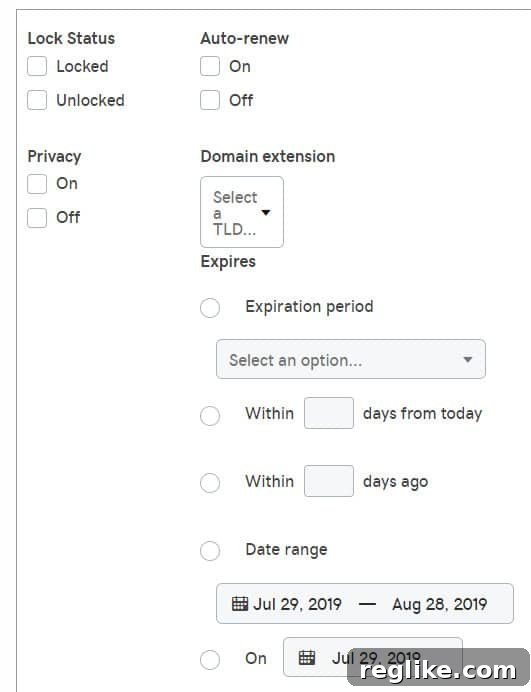
Beyond simply reordering your domain list, the “Filter” option, conveniently located to the right of “Edit Columns,” is a game-changer for precise domain management. Filtering allows you to dramatically reduce the visible list of domains based on specific criteria, cutting through the noise to focus only on what matters most at any given moment.
The distinction between filtering and sorting is crucial: sorting reorders your entire list, while filtering actively hides domains that don’t meet your specified conditions. This makes it far easier to take targeted action on particular segments of your portfolio.
A prime example of its utility is the ability to find domains expiring within the next month. While you can sort your domains by expiration date, filtering ensures you only see the domains that are immediately approaching their renewal deadline. This proactive approach helps prevent accidental expirations, allows for timely renewal budgeting, and gives you ample opportunity to decide whether to renew, sell, or let a domain drop.
But the “Filter” functionality extends far beyond expiration dates. Here are other invaluable ways to leverage this feature:
- By TLD: Easily view all your .com domains, all your .net domains, or focus on specific new gTLDs you manage. This is excellent for TLD-specific campaigns or analysis.
- By Auto-Renew Status: Quickly identify all domains set to auto-renew (to manage potential charges) or, conversely, all domains requiring manual renewal (to avoid lapses).
- By Privacy Status: Check which domains have domain privacy enabled or disabled, ensuring compliance with your personal or business privacy policies.
- By Lock Status: Confirm which domains are locked (preventing unauthorized transfers) and which are unlocked (perhaps in preparation for a legitimate transfer).
- By Nameserver: Isolate domains pointing to a specific set of nameservers, useful for managing domains hosted on a particular server or service.
- By Associated Product: If GoDaddy offers this, filter domains linked to specific hosting packages, email plans, or website builders.
- By Domain Status: View domains that are pending transfer, pending deletion, or in a client hold status.
The power of filtering is amplified when you combine multiple criteria. Imagine filtering for “.com domains expiring next month with auto-renew off” – this level of specificity allows for incredibly efficient and targeted management, ensuring no critical task is overlooked. This functionality truly transforms large, unwieldy lists into manageable, actionable segments.
Streamlining Contact Changes for Internal Transfers: A Smart Workaround
While the new GoDaddy domain manager brings many improvements, some specific workflows can initially present challenges. One common point of frustration for users dealing with internal domain transfers—where domains are moved from one GoDaddy account to another—is the handling of contact information.
The Problem: When you receive multiple domains transferred internally to your GoDaddy account, the system, in its default behavior, often prompts you to update the contact details for each domain individually. If you’re accepting ten, twenty, or even hundreds of domains, manually changing contact information one by one can be an incredibly time-consuming and tedious process, negating the efficiency gains hoped for with a modern dashboard.
The Solution: Fortunately, there’s an effective workaround that leverages the bulk update capabilities of the new manager, significantly streamlining this process:
- Accept Domains As-Is: When prompted to change contact details upon accepting the transferred domains, resist the urge to do it one by one. Instead, proceed to accept all of the incoming domains into your account with their existing contact information (which would typically be the previous owner’s details). The primary goal at this stage is to get the domains officially into your GoDaddy account.
- Perform a Bulk Update: Once all the domains have successfully landed in your account, navigate to your main domain portfolio view. Utilize the bulk selection feature (as discussed earlier, by checking the boxes next to the relevant domains, or using the bulk search to pull them up).
- Initiate Bulk Contact Update: With the domains selected, look for an option that allows for “Bulk Edit,” “Bulk Update,” or “Change Contact Information.” Within this bulk action menu, you can then apply your standardized contact details (registrant, administrative, technical, and billing contacts) to all selected domains simultaneously. This one-time update will override the old contact information with your desired details across the entire group of domains.
This workaround not only saves a considerable amount of time and effort but also ensures consistency in your contact information across your newly acquired domains. Remember, maintaining accurate and up-to-date contact details is crucial for domain ownership verification, security, and receiving important renewal notices.
Beyond the Basics: Further Exploration in Your GoDaddy Account
While bulk actions, custom columns, and intelligent filtering form the bedrock of efficient domain management, GoDaddy’s new dashboard offers a wealth of other features worth exploring:
- Domain Security Settings: Dive into options like domain locking (to prevent unauthorized transfers) and two-factor authentication (for enhanced account security).
- DNS Management: The new interface typically provides a more intuitive and responsive DNS editor, allowing you to easily manage A records, CNAMEs, MX records, TXT records, and more, which are vital for pointing your domains to websites, email services, and other online resources.
- Auto-Renewal Settings: Take granular control over which domains automatically renew. While convenient, ensuring this is correctly configured helps prevent unwanted charges or accidental expirations for domains you intend to drop.
- Domain Monetization/Parking: Explore options for monetizing domains that are not actively in use, often integrated directly into the manager.
- Account Settings and Preferences: Customize your overall account experience, including notification preferences and payment methods, to ensure they align with your operational workflow.
Conclusion: Embracing a More Efficient Future
The mandatory shift to GoDaddy’s new domain manager, while initially a source of adjustment for many, represents a significant step forward in offering a more powerful, intuitive, and efficient platform for managing your digital assets. By familiarizing yourself with features like the enhanced bulk search, customizable columns, precise filtering options, and smart workarounds for specific challenges like internal transfers, you can quickly move beyond mere adaptation to true mastery.
Embrace the opportunity to streamline your domain management tasks, save valuable time, and gain greater control over your domain portfolio. The new dashboard is designed to empower you with the tools needed to navigate the complexities of domain ownership in the modern digital landscape. Explore, experiment, and leverage these features to unlock a more productive and hassle-free domain management experience with GoDaddy.