
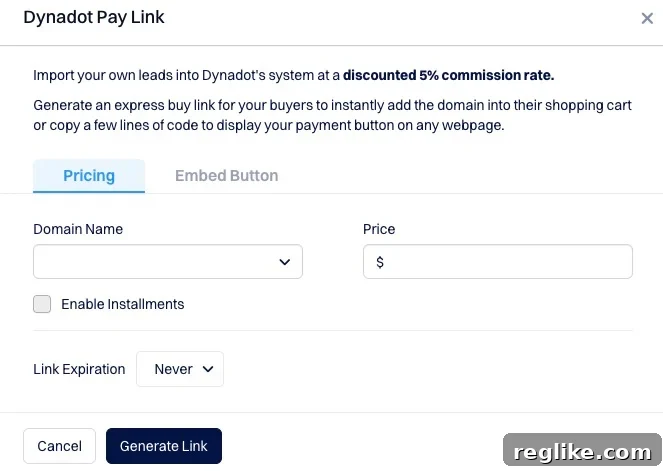
Mastering Dynadot Pay Links: A Comprehensive Guide for Selling External Domains
Selling a domain name that isn’t registered with Dynadot can initially seem like a complex task, especially when utilizing specific platform features designed for transactions. However, Dynadot offers a robust and cost-effective solution called the “Pay Link” service, which facilitates secure domain sales between a buyer and a seller, even when the domain is hosted elsewhere. While the initial setup for an externally registered domain might present a slight learning curve, the benefits—including competitive fees and attractive incentives—make it an exceptionally appealing option for domain investors and casual sellers alike.
Understanding Dynadot Pay Link: Securely Selling External Domains
The Dynadot Pay Link service is essentially a secure transaction mechanism that allows you to sell a domain name directly to a specific buyer, even if that domain is currently managed by another registrar. Unlike a public marketplace listing, a Pay Link is a private payment gateway you generate and send to your buyer. It ensures that funds are securely held until the domain transfer is initiated and confirmed, protecting both parties involved in the transaction.
What is a Dynadot Pay Link?
At its core, a Dynadot Pay Link is a unique URL that you create within your Dynadot account, specifying the domain name for sale and its agreed-upon price. When your buyer clicks this link, they are directed to a secure payment page hosted by Dynadot, where they can complete the purchase using various payment methods. This system acts as a trusted intermediary, eliminating the risks often associated with direct, unescrowed transactions between private individuals.
Why Choose Dynadot for Your Domain Transaction?
There are several compelling reasons why Dynadot’s Pay Link stands out as an excellent choice for facilitating your domain sales:
- Unmatched Security for Both Parties: Dynadot acts as an escrow-like service. The buyer’s funds are secured by Dynadot upon payment, and the seller is assured payment once the domain transfer is successfully completed. This prevents fraud and ensures a smooth, trust-based transaction.
- Competitive Fee Structure: Dynadot charges a modest 5% fee on Pay Link transactions. This is often significantly lower than fees charged by other domain marketplaces or dedicated escrow services, making it a highly cost-effective option for sellers.
- Attractive Store Credit Bonus: For sellers who opt to convert their received funds into Dynadot store credit, an additional 2% bonus is applied. This incentive can be particularly valuable for domain investors looking to reinvest their earnings into acquiring more domains or renewing existing ones within the Dynadot ecosystem.
- Flexible Payout Options: Dynadot provides a wide array of payout options, catering to diverse seller preferences. This includes traditional bank transfers, PayPal, and notably, various cryptocurrency options, offering modern flexibility that many platforms lack.
- Streamlined Process (Once Understood): While the initial steps for an external domain might seem slightly counter-intuitive, the process is designed for efficiency. Once you’re familiar with the workflow, generating Pay Links and managing transfers becomes straightforward and rapid.
Getting Started: Prerequisites for a Smooth Sale
Before you dive into creating your first Dynadot Pay Link, ensure you have a few essentials in place to guarantee a seamless transaction:
- A Dynadot Account: You’ll need an active Dynadot account to utilize the Pay Link service. If you don’t have one, registration is quick and free.
- Clear Agreement with the Buyer: Confirm all sale terms with your buyer beforehand, including the exact domain name, the agreed-upon price, and any specific deadlines. The Pay Link should reflect these terms precisely.
- Access to Your Current Registrar: Since your domain is registered elsewhere, you’ll need access to your current registrar’s account to verify domain ownership and later to retrieve the authorization code for transfer.
- Understanding of Domain Transfer Basics: Familiarize yourself with how domain transfers work in general, including typical timelines and necessary approvals.
Step-by-Step Guide to Using Dynadot Pay Link
This tutorial will demystify the process of using a Dynadot Pay Link for domains not registered directly with Dynadot, guiding you through each necessary step.
Step 1: Integrating Your External Domain into Your Dynadot Account
The first crucial step is to inform Dynadot about the external domain you intend to sell. This allows their system to recognize and track the domain, even though it’s not yet under their direct management.
Navigating to the “Other Registrar” Section
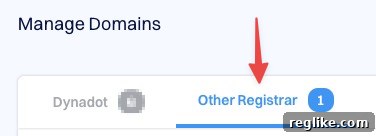
Begin by logging into your Dynadot account. In the left-hand navigation column, click on “Manage Domains.” Within the “Manage Domains” interface, you’ll find various tabs at the top. Select the tab labeled “Other Registrar.” This section is specifically designed for domains you own but are registered with different providers.
Adding Your Domain and Initiating Verification
Once you are on the “Other Registrar” tab, locate and click the “Add Domains” button, typically positioned on the right side of the page. A prompt will appear where you can enter the domain name you wish to sell. After entering the domain, click the submission button to proceed. Dynadot will then require you to verify ownership of this domain. This verification is a critical security measure to ensure that only the legitimate owner can initiate transactions related to a domain.
Methods of Domain Ownership Verification
Dynadot offers a few convenient methods to verify domain ownership:
- TXT Record: This is a common and usually preferred method. You’ll be given a unique string of text to add as a TXT record in your domain’s DNS settings at your current registrar. This change doesn’t affect your website or email services.
- CNAME Record: Similar to a TXT record, a CNAME record points a subdomain to another domain. Dynadot will provide specific CNAME details for you to configure in your DNS settings.
- Changing Nameservers: This is a more comprehensive method where you update your domain’s nameservers at your current registrar to point to Dynadot’s nameservers. While effective, this will temporarily disconnect any existing services (like websites or email) associated with your domain if not managed carefully. Choose this method only if you understand its implications or if the domain has no active services.
After implementing the chosen verification method, it might take some time (usually a few minutes to a few hours) for the DNS changes to propagate across the internet and for Dynadot to recognize the verification. You can typically check the status directly within your Dynadot account.
Step 2: Preparing Your Domain for Sale in the Dynadot Marketplace
Even for a private sale via Pay Link, Dynadot requires the domain to be internally listed in its marketplace system. This step registers the domain’s intent to be sold within Dynadot’s framework, enabling the Pay Link functionality.
Accessing Bulk Actions and Selecting “Sell Domain”
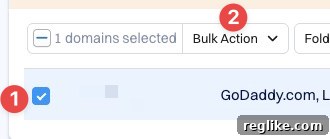
With your domain now verified and recognized by Dynadot (still within the “Manage Domains” tab), navigate back to the main list of your domains. Locate the domain you’ve just added and check the box next to its name. Above the list of domains, you will see a “Bulk Action” drop-down menu. Click on this menu and select “Sell Domain” from the available options.
Understanding the Marketplace Listing for Private Sales
It’s important to note that selecting “Sell Domain” at this stage does not automatically make your domain publicly available on the Dynadot marketplace for anyone to bid on. For a Pay Link transaction, this action simply registers your domain within Dynadot’s internal selling system, marking it as available for a specific, direct sale. You will not be setting public auction parameters or prices at this point; those details are handled when you create the Pay Link itself.
Step 3: Generating Your Unique Dynadot Pay Link
Now that your domain is integrated and marked for sale within Dynadot’s system, you’re ready to create the actual Pay Link to send to your buyer. This is where you specify the sale price and other transaction details.
Locating the Pay Link Creation Interface
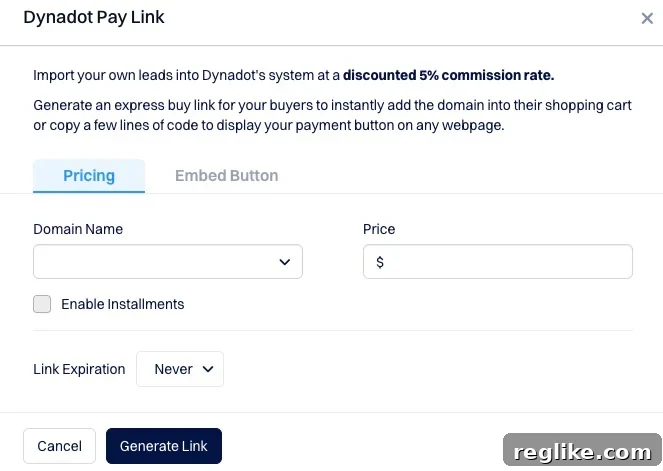
From your Dynadot dashboard, navigate to the “Aftermarket” section in the left-hand column. Within “Aftermarket,” click on “My Marketplace Listings.” This page displays domains you have listed for sale. At the top of this page, you should see a prominent button labeled “Dynadot Pay Link.” Click this button to open the form for creating your secure payment link.
Configuring Your Pay Link Details
The Pay Link creation form is user-friendly and straightforward:
- Domain Selection: From the provided drop-down menu, select the specific domain name you are selling. Ensure you pick the correct one to avoid any transaction errors.
- Setting the Sale Price: Enter the agreed-upon sale price for your domain in the designated field. Double-check this amount to match your agreement with the buyer.
- Link Expiration Options: You have the option to set an expiration timeframe for the Pay Link. This can be useful for creating a sense of urgency for the buyer or for managing offers that have a limited window. If the link expires, it becomes inactive, and you would need to generate a new one.
- Enabling Installment Payments: Dynadot offers the convenience of installment payments for your buyer, if you wish to allow it. You can enable this feature and configure the terms (e.g., number of installments, duration). While this can broaden your potential buyer pool, be mindful of the additional complexity it introduces and ensure both parties are clear on the terms.
Once all details are accurately entered, click the button to generate the Pay Link. Dynadot will provide you with a unique URL that you can then securely share with your buyer. It’s recommended to copy this link carefully and send it through your preferred communication channel.
What Your Buyer Experiences
When your buyer receives and clicks the Dynadot Pay Link, they will be taken to a secure Dynadot page displaying the domain name, the purchase price, and various payment options. They can then proceed to complete the transaction, with Dynadot safeguarding their funds until the transfer is finalized.
Step 4: Executing the Domain Transfer After a Successful Sale
After the buyer has successfully paid via the Pay Link, Dynadot will notify you that the funds are secured. The next critical step is to transfer the domain from your current registrar to Dynadot. This is where some users find the process slightly confusing, as it requires revisiting a familiar section rather than continuing within the “Aftermarket” area.
The Post-Sale Transfer Process Demystified
It’s important to understand that the Pay Link facilitates the payment, but the actual administrative process of moving the domain from one registrar to another is a separate, although linked, procedure. Dynadot’s system requires the domain to be under its management for the transaction to be fully completed and for your funds to be released. This is why you need to initiate a standard domain transfer.
Initiating the Transfer and Providing the Authorization Code
To begin the transfer, go back to “Manage Domains” in your Dynadot account and select the “Other Registrar” tab once more. You will now see your domain listed there, likely with an option to “Transfer” it. Click the “Transfer” button next to your domain. You will then be prompted to enter the domain’s Authorization Code (also known as an EPP code or transfer key).
This authorization code is a crucial security measure provided by your current registrar. You must obtain this code from your current registrar’s domain management panel. Typically, there’s an option like “Get EPP Code” or “Transfer Out Domain” which will reveal it. Ensure the domain is unlocked for transfer at your current registrar before attempting to initiate the transfer at Dynadot. Once you enter the correct authorization code, the transfer process officially begins.
Understanding the Domain Transfer Timeline
Domain transfers typically take between 5 to 7 days to complete, although this can vary depending on the top-level domain (TLD) and the responsiveness of the gaining and losing registrars. During this period, you (the seller) and potentially the buyer will receive confirmation emails. It’s vital to approve any transfer requests from your current registrar promptly to avoid delays or cancellations. Once the transfer is complete, the domain will appear in the buyer’s Dynadot account, and your funds will be released to your Dynadot account, ready for withdrawal or conversion to store credit.
Key Advantages of Dynadot Pay Links for Domain Sellers
Recapping the benefits, Dynadot Pay Links offer a robust solution for domain sellers:
- Enhanced Security and Trust: By leveraging Dynadot as a trusted third party, both sellers and buyers are protected from potential fraud, ensuring a legitimate transaction.
- Competitive Fees and Attractive Bonuses: The 5% transaction fee is highly competitive, and the additional 2% store credit bonus provides excellent value for those looking to reinvest.
- Flexible Payout Options: Dynadot’s diverse payout methods, including cryptocurrency, cater to modern financial preferences, offering sellers greater convenience.
- Streamlined Process: Although there’s a slight learning curve for external domains, the step-by-step nature of the Pay Link and transfer process is designed for efficiency once understood, making subsequent sales much faster.
Expert Tips for a Seamless Domain Selling Experience
To further ensure a smooth and successful domain sale using Dynadot Pay Links, consider these expert tips:
- Clear Communication is Paramount: Maintain open and clear communication with your buyer throughout the entire process, from negotiation to transfer completion. Keep them informed of each step and any potential delays.
- Verify Domain Details Meticulously: Before generating the Pay Link, double-check that the domain name, sale price, and any other agreed-upon terms are accurately reflected. Small errors can lead to significant headaches.
- Prepare Your Authorization Code in Advance: Once the sale is agreed upon, retrieve your domain’s authorization code from your current registrar. Having it ready reduces downtime and speeds up the transfer process after payment.
- Understand Your Current Registrar’s Policies: Familiarize yourself with your current registrar’s specific policies regarding domain transfers, including any lock periods or required approval steps, to avoid surprises.
- Monitor Your Email for Transfer Notifications: Both you and the buyer will receive important emails from Dynadot and the registrars involved. Promptly respond to any requests or approvals to keep the transfer moving forward.
Conclusion: Mastering Dynadot Pay Links for Efficient Domain Sales
While the journey of selling an externally registered domain through Dynadot’s Pay Link feature might initially appear to have a few twists and turns, particularly with the requirement to add and verify the domain, and then to navigate the transfer process, the advantages are undeniable. Dynadot provides a secure, reliable, and cost-effective platform for facilitating private domain sales. Once you’ve successfully navigated the process a single time, the steps become intuitive, paving the way for future seamless transactions. With its low fees, generous store credit bonus, and flexible payout options, Dynadot’s Pay Link service stands as an excellent tool for any domain owner looking to sell their valuable digital assets efficiently and securely.