
Unlock Gmail Productivity: Mastering Email Management for Peak Efficiency
In today’s fast-paced business environment, efficient email management is crucial for staying organized, responsive, and ultimately, productive. For many, including myself, Gmail serves as the central hub for managing business communications and daily tasks. It’s the browser tab that’s almost always open. However, the true power of Gmail lies not just in its basic functionalities, but in how effectively you utilize its advanced features. These hidden gems can transform your inbox from a source of overwhelm into a streamlined productivity tool. This article will delve into five essential Gmail features that I personally use to maximize efficiency and take control of my email workflow.
1. Conquer Inbox Clutter with the Snooze Feature
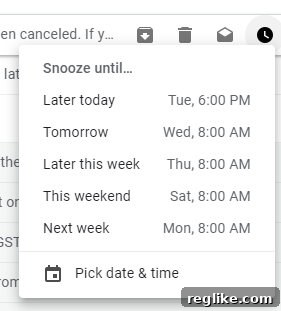
A cluttered inbox is a productivity killer. It’s difficult to prioritize important messages, track pending tasks, and maintain a clear overview of your communication. The Snooze feature is your secret weapon against inbox overload. It allows you to temporarily remove emails from your inbox and schedule them to reappear at a later date and time. This is incredibly useful when you don’t have the immediate information needed to respond to an email, or when you know you won’t be able to address it until a specific deadline. By snoozing emails, you declutter your inbox, focusing your attention on the most pressing matters and ensuring that important tasks don’t fall through the cracks.
Imagine receiving an email requiring you to gather data from multiple sources before you can respond. Instead of letting it clutter your inbox, you can snooze it until you’ve completed the data gathering. When the snooze time arrives, the email reappears at the top of your inbox, prompting you to take action. This feature helps to maintain a clean and manageable inbox, allowing you to focus on what matters most without feeling overwhelmed by a deluge of messages.
2. Streamline Recurring Tasks with Scheduled Send
Many professionals have recurring email tasks, such as sending invoices, project updates, or weekly reports. Manually sending these emails at specific times can be time-consuming and prone to human error. Gmail’s Scheduled Send feature provides a simple and efficient solution. It allows you to compose emails in advance and schedule them to be sent at a specific date and time in the future. This is particularly useful for batching similar tasks and ensuring that important communications are delivered on time, even when you’re not actively working.
Here are a few practical examples of how to leverage the Scheduled Send feature:
- Invoice Automation: Create invoices in batches and schedule them to be sent automatically on their respective due dates. This eliminates the need to manually send each invoice, freeing up valuable time and reducing the risk of late payments.
- Automated Reminders: Schedule reminder emails for upcoming deadlines, appointments, or tasks. This helps to stay organized and ensures that nothing is forgotten.
- Consistent Communication: Schedule weekly updates, newsletters, or progress reports to be sent automatically to stakeholders. This maintains consistent communication and keeps everyone informed, even when you’re busy with other projects.
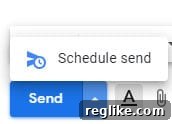
To access the Scheduled Send feature, simply compose your email as usual and click the small arrow next to the “Send” button. This will open a dropdown menu with scheduling options, allowing you to choose a pre-defined time or set a custom date and time for delivery.
3. Save Time and Effort with Canned Responses (Email Templates)
How many times do you find yourself typing the same email responses over and over again? Answering frequently asked questions, sending confirmation emails, or providing standard instructions can be incredibly repetitive and time-consuming. Canned Responses, also known as email templates, are pre-written email drafts that you can quickly insert into your messages with just a few clicks. This eliminates the need to repeatedly type the same information, saving you significant time and effort.
Canned Responses can be used for a wide variety of purposes, including:
- Answering FAQs: Create templates for common questions and quickly respond to inquiries without having to retype the answers each time.
- Confirmation Emails: Send automated confirmation emails for registrations, orders, or appointments.
- Thank You Notes: Quickly send personalized thank you notes to clients, colleagues, or partners.
- Standard Instructions: Provide clear and concise instructions for common tasks or procedures.
- Out-of-Office Messages: Create professional and informative out-of-office messages to inform contacts of your absence and provide alternative contact information.
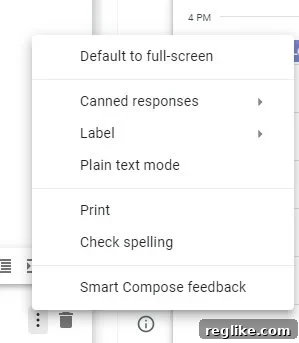
To enable Canned Responses in Gmail, navigate to Settings -> See all settings -> Advanced and enable “Templates”. You can then create and save templates that can be quickly inserted into new emails or replies.
4. Boost Your Writing Speed with Smart Compose
Smart Compose is a Gmail feature that uses machine learning to predict what you’re going to type next and suggest completions as you write. While it may take some getting used to, Smart Compose can significantly speed up your email writing and improve your overall productivity. As you type, the feature suggests words or phrases that it thinks you might be about to write. If you like the suggestion, simply press the Tab key to accept it, and Smart Compose will automatically insert the text into your email.
Smart Compose learns from your writing style and adapts to your preferences over time. The more you use it, the more accurate and relevant its suggestions become. This can be particularly helpful for writing repetitive phrases, common greetings, or standard closing remarks. By leveraging Smart Compose, you can reduce the amount of typing required and focus on crafting the core content of your emails.
While some users initially find Smart Compose distracting, most find that it becomes a valuable tool once they adjust to it. The time saved by accepting suggested completions can add up significantly over the course of a day, making Smart Compose a worthwhile addition to your Gmail workflow.

5. Fortify Your Account Security with Two-Factor Authentication
In today’s digital landscape, securing your email account is more important than ever. Two-factor authentication (2FA) provides an extra layer of security by requiring you to verify your identity using two different methods. This significantly reduces the risk of unauthorized access to your account, even if your password is compromised.
Gmail offers several options for implementing 2FA, including:
- Authenticator App: Use a mobile app like Google Authenticator or Authy to generate unique verification codes that you enter when logging in.
- SMS Codes: Receive verification codes via text message on your phone.
- Security Key: Use a physical security key that plugs into your computer or connects wirelessly via Bluetooth. Security keys are considered the most secure option for 2FA, as they are resistant to phishing attacks.
Enabling 2FA is a simple yet powerful step that can significantly enhance the security of your Gmail account and protect your sensitive information. Take the time to set up 2FA and choose the method that best suits your needs. It’s a small investment that can save you from potential headaches and security breaches down the road.
Conclusion: Unleash the Power of Gmail for Enhanced Productivity
Gmail is more than just an email client; it’s a powerful productivity platform that can be customized to meet your specific needs. By mastering these five essential features – Snooze, Scheduled Send, Canned Responses, Smart Compose, and Two-Factor Authentication – you can unlock the full potential of Gmail and transform your inbox from a source of stress into a tool for efficiency and organization. Take the time to explore these features and experiment with different settings to find what works best for you. With a little effort, you can streamline your email workflow, reclaim valuable time, and achieve peak productivity in your daily tasks.