
Mastering Afternic Bulk Uploads: A Comprehensive Guide to Efficient Domain Portfolio Management
Managing a vast portfolio of domain names can be a daunting task for even the most seasoned domain investor. Manually listing each domain on marketplaces is not only time-consuming but also prone to errors, significantly hindering your domain monetization efforts. Fortunately, platforms like Afternic offer robust bulk upload functionalities designed to streamline this process, ensuring your valuable digital assets are readily available to potential buyers worldwide.
Approximately a year ago, I delved into the intricacies of uploading domains in bulk to prominent platforms like Sedo and Afternic. Recently, I undertook the task of uploading another tranche of approximately 400 domains to Afternic, meticulously documenting each step along the way. This article serves as a comprehensive, step-by-step tutorial, guiding you through Afternic’s efficient bulk upload system, optimizing your domain selling strategy, and ultimately maximizing your sales potential.
Understanding the Power of Afternic for Domain Sellers
Afternic, a leading domain marketplace, is an indispensable tool for anyone looking to sell domain names effectively. What sets Afternic apart is its extensive network, including the industry-leading Domain Listing Service (DLS). The DLS ensures your listed domains are exposed to millions of potential buyers across a wide array of partner registrars, including GoDaddy, Name.com, and many others. This unparalleled distribution dramatically increases the visibility and discoverability of your domain assets, making it a critical component of a successful domain sales strategy. By keeping your portfolio updated on Afternic, you’re not just listing domains; you’re placing them directly in front of interested parties actively searching for their next online venture.
Getting Started: Accessing Afternic’s Bulk Upload Portal
The first prerequisite for leveraging Afternic’s bulk upload feature is to have an active Afternic account. If you don’t have one already, creating an account is a straightforward process that unlocks a world of domain selling opportunities. Once you’re logged in to your Afternic account, navigate directly to the dedicated portfolio upload page: www.afternic.com/pfupload.php. This page is your central hub for managing your domain portfolio in bulk. Here, you have the dual capability of downloading your existing Afternic portfolio and uploading your newly edited or updated domain listings.
Step 1: Downloading Your Current Afternic Portfolio (As a Template)
To ensure accuracy and consistency, especially when adding numerous new domains or updating existing ones, it’s highly recommended to download your current Afternic portfolio. This serves as an excellent template, providing you with the correct format and structure required for a successful upload. Locate the “download” hyperlink on the www.afternic.com/pfupload.php page and click it. A standard file download prompt will appear, similar to what you’d expect when downloading any file from the internet. This process is generally quick and seamless.
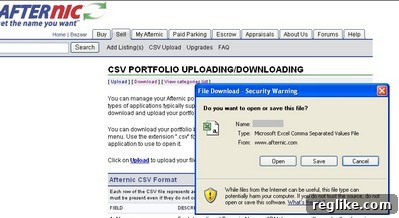
Proceed to save the file to a convenient location on your computer. The file will be in .csv (Comma Separated Values) format, which is universally compatible and can be effortlessly opened and edited using popular spreadsheet software such as Microsoft Excel, Google Sheets, or LibreOffice Calc. This CSV format is crucial as it allows for structured data entry, making the bulk management of your domain attributes highly efficient. When you open the file, you’ll be presented with a tabular view of your existing domains, each accompanied by its associated attributes, ready for review and modification.
Step 2: Deciphering and Populating Your CSV Portfolio with Domain Data
Upon opening your downloaded CSV file, you’ll observe a series of columns representing various attributes of your domains. While the field names might not be explicitly displayed at the very top of each column by default in some spreadsheet programs, understanding their order and purpose is vital. For easier navigation and data entry, a helpful tip is to insert a new row at the very top of the spreadsheet and manually enter the field names. This temporary header row will serve as a clear guide during your editing process. However, remember to delete this temporary header row before you upload your listings to Afternic, as the system expects the data to start from the first row.
Below is a detailed breakdown of each column, explaining its purpose and how to correctly populate it:

- Domain: This is the most critical field. Enter the full domain name (e.g., example.com). Ensure absolute accuracy to avoid listing errors or misrepresenting your assets. Double-check for typos.
- Minimum Offer: This numeric field allows you to set the lowest acceptable bid for your domain. If a domain receives an offer below this amount, it will be automatically declined. Setting a realistic minimum offer is key to attracting serious buyers while protecting your investment. A value of ‘0’ indicates no minimum offer, allowing all bids to be considered.
- Reserve: This field is particularly relevant for auction-style sales. The reserve price is the confidential minimum price you are willing to accept for your domain. If the auction ends without reaching the reserve price, the domain will not be sold. Setting this to ‘0’ means there is no reserve price, and the highest bid will win, regardless of amount. It’s important to understand the difference between ‘Minimum Offer’ (for direct offers) and ‘Reserve’ (for auctions).
- Asking (Price): Also known as the “Buy Now” price, this is the fixed price at which you are willing to sell the domain immediately. If a buyer agrees to this price, the transaction can be completed instantly, bypassing the negotiation or auction process. Setting this to ‘0’ means you do not have an asking price, and you are open to offers or auction bids. Strategically setting an asking price based on market value can lead to quick sales.
- Top Category: Accurate categorization is crucial for buyer discoverability. Select a broad category that best represents your domain’s niche or potential use. Afternic provides a comprehensive list of all available categories, which you can review here. Examples include “Technology,” “Business,” “Real Estate,” “Finance,” etc. Choose the one that provides the best general fit.
- Second-level Category: This field allows for further refinement of your domain’s categorization, making it even easier for targeted buyers to find it. This category must be a sub-category of your chosen “Top Category.” For instance, if your Top Category is “Technology,” a Second-level Category could be “Software” or “Web Hosting.” Incorrect pairing of top and second-level categories is a common error, so consult the full list at the provided link carefully.
- Parking Status: Afternic offers domain parking services that can display “for sale” landing pages, potentially generating revenue from ads while your domain is listed. Set this to ‘0’ if you are not using Afternic’s parking service or if your domain is parked elsewhere. Otherwise, you would use a value indicating Afternic parking.
- Description: This is your opportunity to sell the domain! A well-crafted description can significantly influence a buyer’s decision. Include relevant keywords, highlight the domain’s unique selling points, potential applications, and any valuable features. Keep it concise, compelling, and free of grammatical errors. Think about what makes your domain valuable and communicate that clearly.
- Traffic: This field should be left blank. Afternic’s system does not allow you to upload traffic statistics directly through the bulk upload tool. While traffic is a critical factor for buyers, Afternic often gathers its own data or allows buyers to inquire directly. Focus on the other attributes that you can control.
- Auction Status: This numeric field defines the primary selling status of your domain:
- 1 = For Sale: This is the most common setting, indicating the domain is actively listed for sale.
- 2 = Parked, Not For Sale: Use this if you are using Afternic’s parking service but do not wish for the domain to be actively listed for sale at this time.
- 3 = Not For Sale: This status means the domain is simply managed within your Afternic account but is not available for purchase through the marketplace.
When working with a large number of domains, leverage your spreadsheet software’s features like filters, sorting, and even basic formulas to maintain data consistency and identify potential errors before uploading. Always save your file in the .csv format after making all your edits.
Step 3: Uploading Your Refined Domain Portfolio
Once you have meticulously completed and reviewed all the fields for each domain in your CSV file, it’s time to upload your updated portfolio to Afternic. Return to the familiar upload page: www.afternic.com/pfupload.php. On this page, you will find an “upload” link or button. Click this to initiate the upload process. You will then be prompted to browse your computer and select the CSV file you have just prepared. After selecting the correct file, click the button to begin the upload.
During the upload process, Afternic will typically display a status indicator, showing the progress of your submission. This visual feedback helps assure you that your file is being processed.
The duration of the upload will depend on the size of your portfolio and your internet connection speed. Remain patient as the system processes your domain data.
Step 4: Navigating and Resolving Upload Errors
It’s quite common to encounter a few errors after a bulk upload, especially with larger portfolios. Don’t be discouraged; this is a normal part of the process. Afternic’s system is designed to identify inconsistencies and potential issues to maintain the quality of its listings. Once the upload is complete, you will be presented with a results screen detailing any errors that occurred. This screen provides invaluable feedback, allowing you to quickly pinpoint and rectify problems.
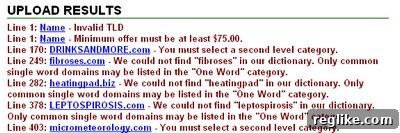
Here are some of the typical errors you might encounter and how to effectively resolve them:
- Category Mismatch (You neglected to select a second-level category or the second-level category doesn’t fall under the primary category you selected): This is a very common error. It occurs when you either leave the second-level category blank or choose a second-level category that is not a valid sub-category of your selected top-level category. For instance, if your top category is “Real Estate,” and your second-level category is “Software,” the system will flag this as an error. To fix this, revisit your CSV, consult Afternic’s category list (www.afternic.com/cats.php), and ensure that your chosen categories are correctly paired and fully specified.
- “One Word” Category Issue (You selected the “one word” category but the domain isn’t in Afternic’s dictionary): Afternic maintains a stringent quality control process, especially for domains listed in premium categories like “One Word.” This ensures that buyers searching for truly premium, dictionary-grade one-word domains get high-quality results. If your domain isn’t in Afternic’s pre-approved dictionary, it will be rejected for this category. (I personally appreciate Afternic checking domains before listing them in the one-word category; it significantly enhances the buying experience.) If you encounter this error, consider changing the top and second-level categories to something more appropriate for your domain, or removing it from the “One Word” categorization if it doesn’t fit.
- Domain is Listed by Another Member: This error indicates that the domain you are trying to upload is already listed for sale by another Afternic member. This can happen for several reasons, including a previous owner who forgot to delist it, or simply a system anomaly. In this scenario, first, carefully verify that you are uploading the correct domain and that you are indeed the rightful owner. If you confirm ownership, the next step is to contact Afternic support. Provide them with proof of ownership (e.g., registrar screenshots) and politely request that they remove the erroneous listing from the other user’s account so you can proceed with your own.
After addressing all identified errors, make the necessary corrections in your CSV file and then re-upload the modified portfolio. This iterative process allows you to refine your listings until all domains are successfully integrated into your Afternic account.
Maximizing Your Domain Sales Potential with Afternic and Beyond
By diligently keeping your domain portfolio up-to-date and accurately listed on Afternic, you are taking a crucial step towards maximizing your potential for domain sales. The benefits extend beyond Afternic’s direct marketplace. Your domains will not only appear on the Afternic exchange but also gain significant visibility through the Afternic DLS network, prominently featuring on major registrar platforms where buyers are actively searching. Furthermore, platforms like DomainTools.com often display Afternic listings as well, adding another layer of exposure.
For truly comprehensive market penetration, it’s highly advisable to maintain an updated portfolio on other leading domain marketplaces such as Sedo. A multi-platform strategy ensures your domains are exposed to the broadest possible audience, catering to different buyer preferences and search behaviors. Active portfolio management, including regular updates to pricing, descriptions, and categories, is not a one-time task but an ongoing commitment that significantly impacts your sales velocity and overall returns.
Conclusion
Efficiently managing a large domain portfolio is a cornerstone of successful domain investing. Afternic’s bulk upload system offers an incredibly powerful and user-friendly solution for streamlining this process. By following this comprehensive guide—from preparing your CSV file with meticulous attention to detail, understanding each attribute, to effectively resolving common upload errors—you can ensure your domains are optimally listed and poised for sale. Embrace the power of bulk uploading to save time, maintain consistency, and exponentially increase the visibility of your valuable domain assets across the global marketplace.
Should you have any further questions, require clarification on any step, or wish to share your own experiences with Afternic’s bulk upload feature, please do not hesitate to post a comment below. Your insights and queries are invaluable to the domain investor community.