
In today’s dynamic digital landscape, understanding your website’s performance is not just beneficial; it’s absolutely essential for sustainable growth and success. Every successful website, from bustling e-commerce platforms to niche blogs, relies on insightful data to make informed decisions. At the heart of this data-driven approach lies Google Analytics, an indispensable tool that offers profound insights into visitor behavior and website traffic patterns.
For those venturing into website management or simply seeking to optimize their online presence, grasping the power of Google Analytics and integrating it seamlessly into a WordPress site can be a game-changer. This comprehensive guide will illuminate what Google Analytics is, why it’s a non-negotiable asset for your digital strategy, and walk you through the simple steps to add it to your WordPress website, empowering you to analyze visitor behavior and enhance your site from the ground up.
What is Google Analytics and Why is it Essential for Your Website?

Google Analytics is a powerful, free web analytics service offered by Google that tracks and reports website traffic. It acts as your website’s digital detective, collecting crucial data points to help you understand how users interact with your content. From identifying your audience’s demographics to pinpointing their journey through your site, Google Analytics provides a holistic view of your online performance. It’s more than just a counter of visitors; it’s a strategic tool designed to transform raw data into actionable intelligence.
Utilizing Google Analytics allows you to move beyond guesswork and make data-driven decisions that can dramatically improve your website’s effectiveness. It helps answer fundamental questions about your audience and their behavior, which are critical for optimizing user experience, content strategy, and marketing efforts. Without Google Analytics, you’re essentially navigating your website’s growth in the dark, missing out on vital information that could unlock its full potential.
Key Metrics Google Analytics Tracks for Deeper Insights
Google Analytics offers a treasure trove of metrics, each providing unique insights into your website’s health and user engagement:
- Pageviews: This metric counts the total number of times a page on your website has been viewed. It’s a basic indicator of content popularity, revealing which pages attract the most attention and whether users are exploring multiple sections of your site.
- Sessions: A session represents a single visit to your website. It encapsulates a group of user interactions (like pageviews, events, e-commerce transactions) taking place within a given time frame. Understanding session count helps you gauge overall website traffic volume.
- Session Duration and Pages Per Session: These metrics are vital for assessing user engagement. Session duration indicates how long visitors stay on your site, while pages per session shows how many pages they view during a single visit. Higher values typically suggest more engaging content and a better user experience.
- Traffic Source: Discovering where your visitors come from is paramount for optimizing marketing spend. Google Analytics categorizes traffic into sources such as organic search (visitors from search engines like Google, indicating SEO effectiveness), paid search (from ads), social media, referrals (from other websites linking to yours), and direct traffic (users typing your URL directly).
- Goals or Conversions: This is where the rubber meets the road for many businesses. Goals track specific user actions that are valuable to your business, such as newsletter sign-ups, form submissions, product purchases, or video plays. Monitoring conversions directly correlates with your website’s effectiveness in achieving business objectives.
- Bounce Rate: A crucial metric indicating the percentage of single-page sessions on your website, meaning visitors left your site from the entrance page without interacting further. A high bounce rate could signal issues with content relevance, page design, or user experience.
Beyond these core metrics, Google Analytics offers an intuitive dashboard, enabling users to segment data for targeted analysis, generate custom reports for specific metrics, share reports via email, and seamlessly integrate with other Google products like Google Ads for comprehensive campaign management.
Why Google Analytics is Indispensable for Digital Success
Google Analytics serves as an unparalleled digital marketing tool, helping you monitor the efficacy of your online strategies, discern what content resonates with your target audience, identify pages that contribute to high bounce rates, evaluate overall website performance, and understand the user experience. Essentially, it helps answer critical questions that drive improvement:
- Who: Who are your visitors? What are their geographical locations, age ranges, gender, and interests? Understanding your audience demographics allows for more targeted content creation and marketing campaigns. What devices are they using (desktop, mobile, tablet)? This informs your responsive design strategy.
- What: Once on your website, what actions do visitors take? Which pages do they visit most frequently? How long do they stay on specific pages? What content do they engage with, and what do they ignore? These insights inform content strategy, website navigation, and calls to action.
- Where: From which sources are the majority of your visitors arriving? Is it through organic search results (indicating strong SEO), Google paid ads, social media networks, direct visits, or referrals from other websites? Knowing your top acquisition channels helps optimize your marketing budget and focus.
- When: At what times and on which days of the week are your visitors most active on your website? Identifying peak traffic times can inform your content publishing schedule, promotional activities, and website maintenance planning.
- Why: Why do visitors bounce from certain pages? Why are your email list sign-ups not converting as expected? Why aren’t people interacting with key elements on your webpages? Answering these “why” questions requires deeper analysis but ultimately leads to actionable strategies for improvement, such as A/B testing page layouts or refining content.
By diligently seeking answers to these fundamental questions, you can dramatically enhance your chances of growth, foster a loyal audience, and achieve your website’s strategic objectives. Google Analytics empowers you to make informed decisions, transforming your website from a mere online presence into a powerful, data-driven engine for success.
Seamlessly Integrating Google Analytics with Your WordPress Website
Now that you understand the profound value Google Analytics brings, let’s dive into the practical steps of setting it up on your WordPress website. While there are a few methods for integration, the most user-friendly and recommended approach for WordPress users is leveraging a dedicated plugin. This method simplifies the process, eliminating the need for manual code editing and potential errors.
Step 1: Establishing Your Google Analytics Account
The foundational step in connecting Google Analytics to your WordPress website is to create a Google Analytics account. If you already have a Google Account (for Gmail, Google Drive, etc.), this process is even simpler. If not, you’ll need to create one first.
Begin by visiting the Google Analytics sign-up page. If you’re logged into a Google Account, you’ll be prompted to sign in or choose an account. If not, you’ll be guided through creating a new Google Account before proceeding with Analytics setup.
Once you’ve accessed the setup interface, Google will guide you to initiate your first Google Analytics property. This is where your website’s data will be collected and organized.
Step 2: Configuring Your First Google Analytics Property
After successfully logging in with your Google Account, you’ll encounter a screen prompting you to sign up for Google Analytics. Click on the Sign up button to begin the property creation process.
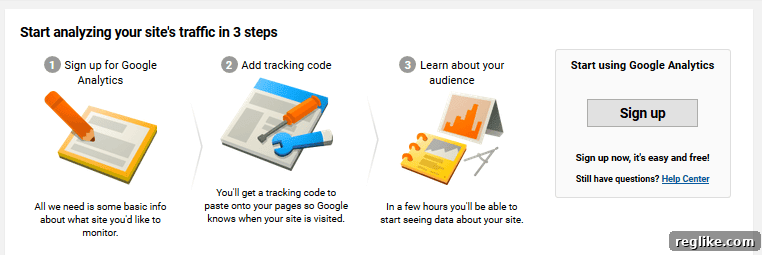
The next screen will ask you to choose what you want to track. Ensure you select Website, as this guide focuses on web analytics for your WordPress site.

You will then be prompted to enter essential information for your new Google Analytics property. Accurately fill in the following details:
- Account Name: A descriptive name for your overall Analytics account (e.g., your business name).
- Website Name: The specific name of your website (e.g., “My Awesome Blog”).
- Website URL: The full URL of your website (e.g., `https://www.example.com`). Ensure you select the correct protocol (HTTP or HTTPS).
- Industry Category: Choose the industry that best describes your website. This helps Google benchmark your data against similar sites.
- Reporting Time Zone: Select your local time zone for accurate data reporting.
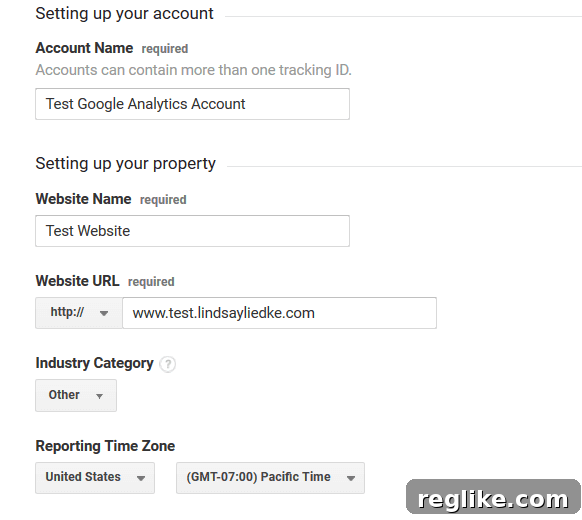
Once all fields are complete, scroll to the bottom of the page and click on Get Tracking ID. You will then be presented with the Google Analytics Terms of Service. Read through them and agree to the terms to proceed.
Step 3: Retrieving Your Unique Google Analytics Tracking ID
Upon accepting the terms of service, you will be directed to a screen displaying your unique Google Analytics tracking code. This code snippet is critical as it serves as the bridge between your website and the Google Analytics service, enabling data collection.
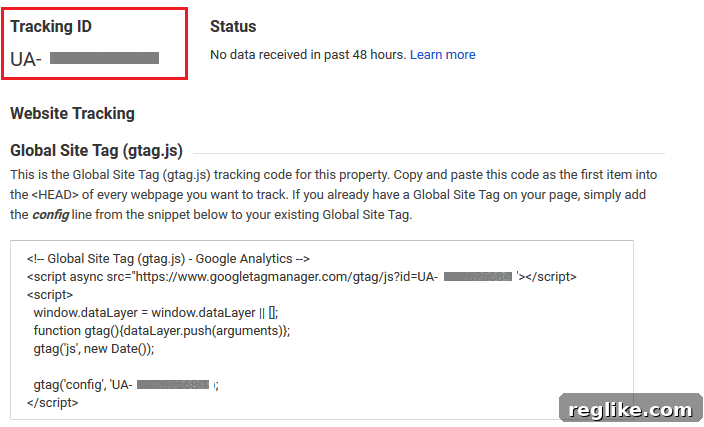
This tracking code, often starting with “UA-” for Universal Analytics or “G-” for Google Analytics 4, is what you will use to connect your WordPress website to Google Analytics. Keep this page open or copy the tracking ID to your clipboard, as you’ll need it in the next steps.
Step 4: Integrating Google Analytics into Your WordPress Site – The Plugin Method
With your Google Analytics Tracking ID in hand, it’s time to integrate it into your WordPress website. While manually inserting the tracking code into your theme’s header file is an option, it requires some technical comfort and carries the risk of being overwritten during theme updates. For WordPress users, the most recommended, user-friendly, and robust method is to use a dedicated plugin. This approach ensures seamless integration, easy management, and often provides additional features.
For this guide, we will focus on one of the most popular and highly-regarded Google Analytics plugins for WordPress: MonsterInsights.
Why MonsterInsights is the Preferred Google Analytics Plugin for WordPress

MonsterInsights stands out as the most widely used Google Analytics plugin for WordPress, boasting over 3 million active installs. Its popularity stems from its incredible ease of use, robust feature set, and the ability to integrate Google Analytics effortlessly without writing a single line of code.
MonsterInsights simplifies the entire process, from installation to configuration, allowing you to connect your WordPress site to Google Analytics in minutes. Crucially, it brings your most important website statistics directly into your WordPress dashboard, offering real-time data, comprehensive reports, and actionable insights at a glance. This eliminates the need to constantly switch between your WordPress admin area and the Google Analytics website, streamlining your workflow and making data analysis more accessible. Features like enhanced e-commerce tracking, custom dimension tracking, and performance reports further solidify its position as the go-to solution for WordPress site owners.
Step 5: Installing and Activating the MonsterInsights Plugin
Installing MonsterInsights is as straightforward as installing any other WordPress plugin:
- From your WordPress dashboard, navigate to Plugins > Add New.
- In the search bar, type “MonsterInsights” and press Enter.
- Locate the “MonsterInsights – Google Analytics Dashboard for WordPress” plugin in the search results.
- Click on the Install Now button.
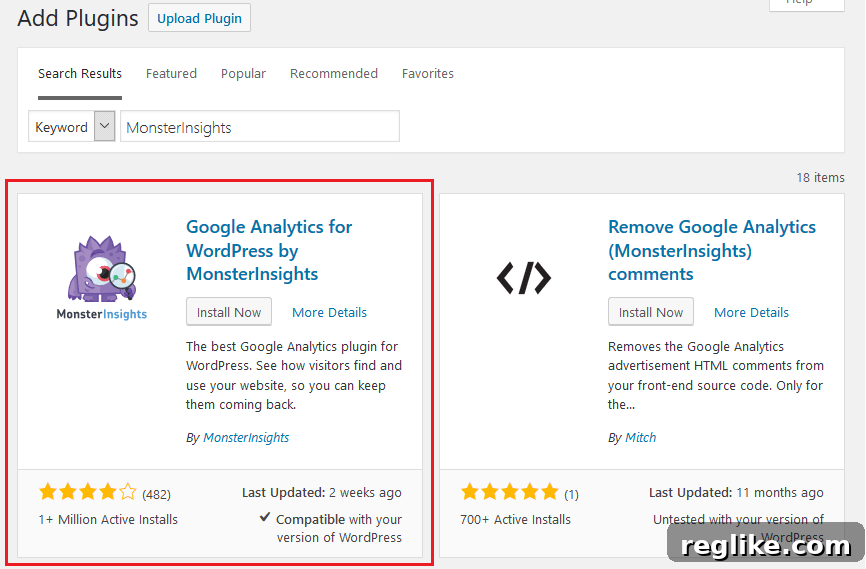
- Once installed, the button will change to Activate. Click it to enable the plugin on your website.
Upon activation, MonsterInsights will typically launch a setup wizard to guide you through the initial configuration. This wizard simplifies the connection process considerably.
Step 6: Configuring MonsterInsights and Connecting to Google Analytics
After activating MonsterInsights, the next crucial step is to connect it to your Google Analytics account. This typically starts automatically with a setup wizard, but if not, navigate to Insights > Settings in your WordPress dashboard. From there, click on the button to authenticate your Google Account.
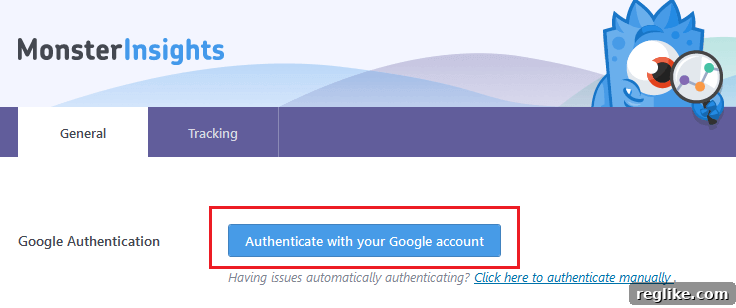
You will then see a screen initiating the authentication process. Click Next to continue.

On the subsequent screen, click on Click to Get Google Code.
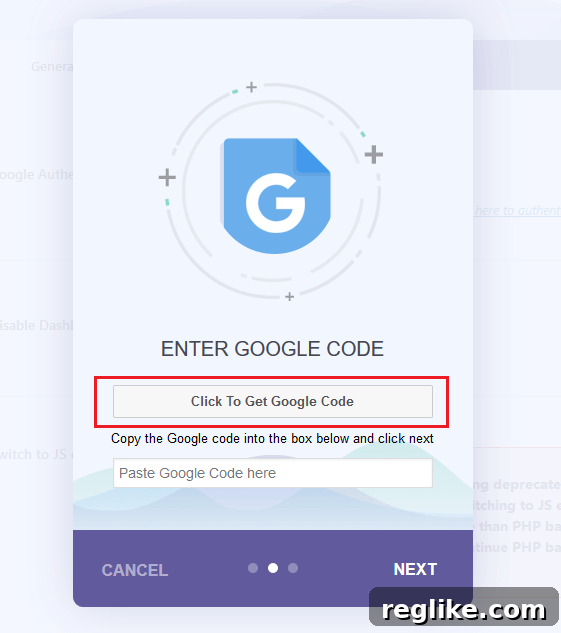
A new pop-up window will appear, prompting you to log into the Google Account associated with your Google Analytics property. Log in, then grant MonsterInsights the necessary permissions by clicking Allow so it can securely access your Google Analytics data and display it within your WordPress dashboard.
Once permission is granted, Google will provide you with an authentication code. Copy this code.
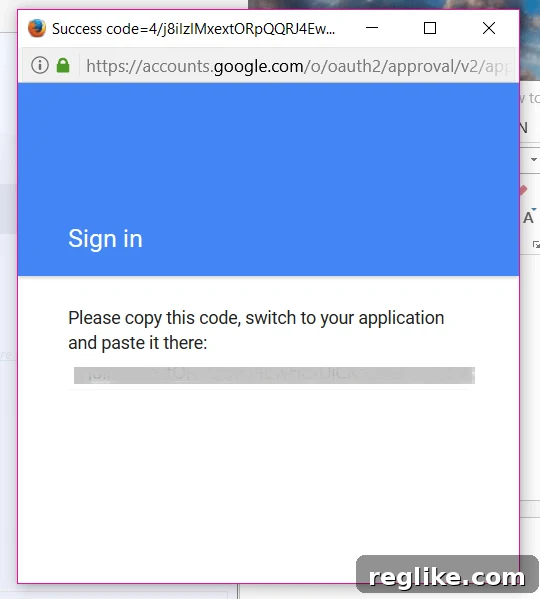
Paste the copied Google code into the designated field on your MonsterInsights settings page within WordPress. Click Next.
You will then be asked to select the website profile (or property) you wish to connect from a dropdown menu. If you have multiple websites linked to your Google Analytics account, ensure you choose the correct one for your current WordPress installation.
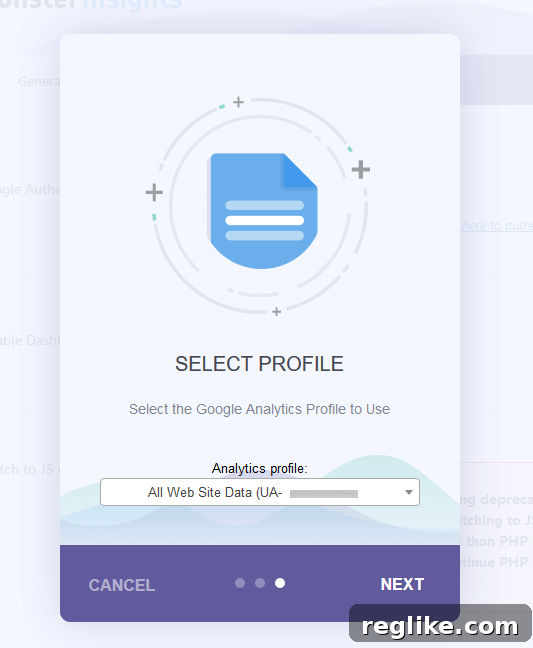
Confirm your selection by clicking Next again.
Once all steps are completed successfully, MonsterInsights will display a “Done” screen, confirming that your Google Analytics account is now connected to your WordPress website.

Congratulations! You have successfully added Google Analytics to your WordPress website using the MonsterInsights plugin. It’s important to remember that Google Analytics needs some time, typically 24-48 hours, to start collecting and processing substantial data from your website.
Monitoring Your Website’s Performance: Post-Setup Insights
Once Google Analytics begins collecting data, you’ll be able to access detailed reports directly from your WordPress dashboard. Simply navigate to Insights > Reports. MonsterInsights will present a user-friendly overview of your website’s performance, including key metrics like sessions, pageviews, bounce rate, and top-performing content.
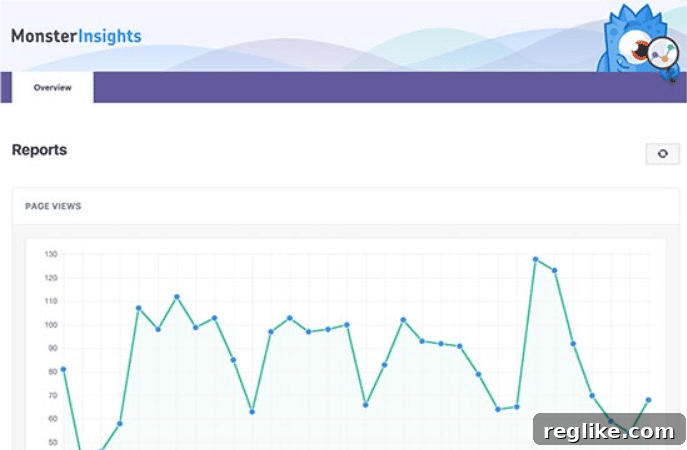
This integrated dashboard makes it incredibly convenient to keep an eye on your website’s health without leaving your WordPress environment. You can quickly identify trends, understand user flow, and spot areas for improvement. Regularly reviewing these reports will empower you to refine your content strategy, optimize your website’s design, and ultimately drive better results for your online presence.
Conclusion: Empower Your WordPress Website with Google Analytics
Integrating Google Analytics into your WordPress website is an indispensable step for any serious website owner. It transforms your online presence from a static page into a dynamic, data-driven asset. By harnessing the power of Google Analytics, you gain an unparalleled understanding of who your visitors are, how they interact with your content, and where they come from, enabling you to make strategic decisions that fuel growth and enhance user experience.
The MonsterInsights plugin makes this crucial integration remarkably simple and accessible for all WordPress users, regardless of technical expertise. Its seamless setup and the convenience of having vital analytics data right within your WordPress dashboard are unmatched. With MonsterInsights, you can easily monitor your website’s performance, identify what’s working well, pinpoint areas that need attention, and implement improvements in real-time.
Don’t let your website’s potential go untapped. Take the proactive step today to empower your WordPress site with Google Analytics via the MonsterInsights plugin. The insights you gain will not only surprise you but will also guide you toward building a more effective, engaging, and successful online platform.