
Get EPP/auth codes in bulk with Claude and your browser
Moving domains between registrars often requires an EPP or transfer authorization code for each name. While some registrars provide a bulk export of these codes, many do not — which forces you to retrieve each code individually through the control panel. That manual approach is slow and error-prone, especially if you manage dozens or hundreds of domains.
AI-assisted automation can remove that friction. Tools like Claude, paired with a browser extension, can interact with your registrar’s control panel and collect authorization codes across multiple domains, then place the results into a spreadsheet. The process reduces repetitive clicking, speeds transfers, and lowers the chance of missing a domain.
What you need
- A Claude desktop app or web access to Claude
- A browser extension that lets Claude interact with your open pages
- Access to your domain registrar control panel where your domains and transfer/EPP codes appear
Step-by-step: how it works
Once you have Claude and the browser companion installed and are logged into your registrar account, use Claude’s CoWork or automation feature to instruct the model to perform the following tasks on the open registrar page:
- Identify each domain listed in your control panel.
- Open the management menu for a domain (often behind a three-dot menu or a “Manage” link).
- Locate the option to view or request the EPP/authorization code and copy that code.
- Record the domain and its EPP code in a spreadsheet or CSV file.
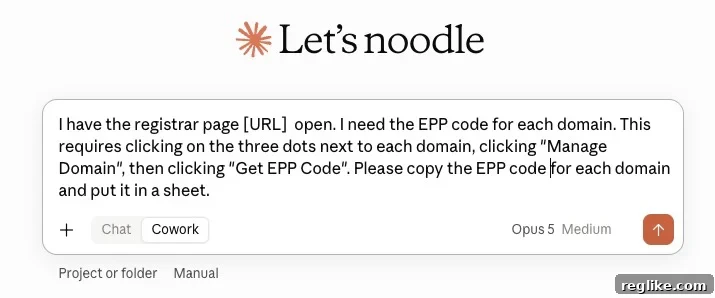
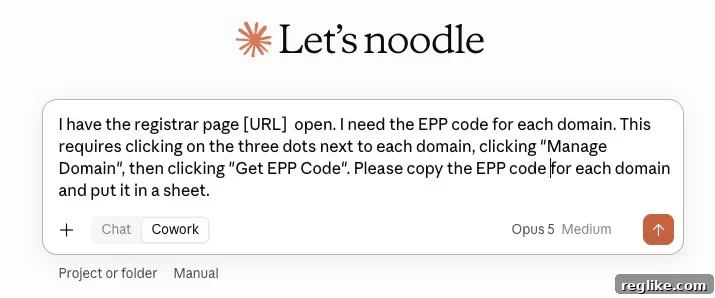
Example prompt you can adapt to your registrar layout:
I have my registrar domain list open at this URL. For each domain listed, please open its management menu, select the option to retrieve the EPP/transfer authorization code, copy the code, and enter a line in a spreadsheet with the domain name and its code. If any domain requires additional confirmation steps, report that domain and the step required.
Practical tips and safety considerations
- Batch processing: If you manage a large portfolio, break the list into batches (for example, 30–50 domains per run). Smaller batches reduce the chance that an error or time-out will force you to repeat a large job.
- Confirm results: Have Claude output the results into a simple CSV or spreadsheet and then quickly scan it for missing entries, duplicates, or unexpected values.
- Permissions: Ensure that any browser extension or automation tool you use has permission only to the pages it needs. Avoid granting broad access to unrelated sites or sensitive accounts.
- Two-factor prompts: If your registrar prompts for two-factor authentication or additional confirmation before revealing EPP codes, include instructions in the prompt to surface those domains and indicate the required step instead of attempting to bypass security.
- Audit trail: Keep a record of when codes were retrieved and by which account. This helps with troubleshooting if a transfer fails or a registrar requires proof of code issuance.
When to use this approach
This automation is especially useful when you cannot export EPP codes in bulk from your registrar, when you maintain a large number of domain names, or when you want to speed up a transfer project that would otherwise require many hours of manual clicks. It’s not a replacement for secure procedures — treat EPP codes as sensitive data and store them securely until you submit them to the gaining registrar.
Wrap-up
Using Claude and a browser extension to extract EPP/auth codes streamlines domain transfers and reduces manual work. With a clear prompt, batch processing, and basic safety checks, you can collect codes efficiently and prepare a clean spreadsheet for registrar transfers.