
Master Your Inbox: Unlocking Peak Email Efficiency with Gmail’s Canned Responses (Templates)
In today’s fast-paced digital world, email remains a cornerstone of communication for both personal and professional interactions. However, the sheer volume of emails, coupled with the frequent need to send similar messages or relay repetitive information, can quickly transform your inbox from a powerful tool into a significant time sink. While innovations like Gmail’s Smart Reply offer quick, AI-generated short responses, they often fall short when you need to convey more detailed, custom, yet standardized information.
Enter Gmail Canned Responses, now officially known as Templates. This often-underestimated feature is a game-changer for anyone seeking to dramatically boost their email productivity, maintain consistency, and reclaim precious minutes – which quickly add up to hours – spent typing the same content over and over. Far more powerful than simple quick replies, Templates allow you to create and store complete email drafts, including subject lines, body text, and even basic formatting, ready to be inserted with just a few clicks.
This comprehensive guide will walk you through everything you need to know about Canned Responses (Templates): from enabling this potent feature in your Gmail settings to crafting effective templates, deploying them seamlessly, and exploring a myriad of real-world applications that will revolutionize your email workflow. Prepare to transform your approach to email and discover a new level of efficiency you didn’t know was possible.
Why Gmail Canned Responses Are an Indispensable Productivity Tool
Before diving into the “how,” let’s explore the compelling reasons why integrating Templates into your email strategy is a smart move:
- Unprecedented Time Savings: The most obvious benefit. Imagine the cumulative time saved by not having to retype disclaimers, welcome messages, frequently asked questions, or project updates. For routine communications, Templates can cut composition time from minutes to mere seconds.
- Ensured Consistency and Accuracy: Whether you’re a business owner ensuring brand voice, a customer service representative providing uniform information, or a professional needing to include specific legal disclaimers, Templates guarantee that every message conveys the correct, consistent information without typos or omissions.
- Enhanced Professionalism: Rapid, well-structured, and error-free responses project an image of efficiency and professionalism. You can respond quickly without sacrificing quality, ensuring your communication always meets a high standard.
- Reduced Mental Fatigue: Constantly crafting similar messages drains mental energy. By automating repetitive text, you free up cognitive resources to focus on the unique, more complex aspects of each email, leading to higher-quality interactions.
- Versatility Beyond Replies: Don’t let the old “Canned Responses” name mislead you. These aren’t just for replies. You can use templates to initiate new emails, add sections to existing drafts, or include standard information in any outgoing message.
- Scalability: As your communication needs grow, Templates scale with you. Easily manage multiple clients, projects, or inquiries by having a library of tailored responses at your fingertips.
Enabling Canned Responses (Templates) in Gmail
Gmail’s Canned Responses feature is part of its “Advanced” settings, meaning it’s not enabled by default. Here’s how to turn it on:
Step-by-Step Activation Guide:
- Access Your Gmail Settings:
- Open your Gmail inbox in a web browser.
- Click on the Gear icon (Settings) located in the top-right corner of your Gmail interface.
- From the dropdown menu, select “See all settings.”
- Navigate to the “Advanced” Tab:
- In the settings menu that appears, you’ll see several tabs at the top (General, Labels, Inbox, Accounts and Import, etc.).
- Click on the “Advanced” tab. (Note: In older Gmail versions, this was sometimes called “Labs”).
- Enable “Templates”:
- Scroll down the “Advanced” tab until you find the option labeled “Templates” (it was formerly “Canned Responses”).
- Click the “Enable” radio button next to it.
- Save Your Changes:
- Crucially, scroll to the bottom of the page and click the “Save Changes” button. If you don’t save, the feature will not be activated.

Once enabled, Gmail will reload, and the “Templates” feature will now be available in your compose window.
Creating Your First Canned Response (Template)
Creating a template is straightforward. You essentially draft an email as if you were sending it, and then save that draft as a reusable template.
Step-by-Step Template Creation:
- Compose Your Template Content:
- Click the “Compose” button to start a new email.
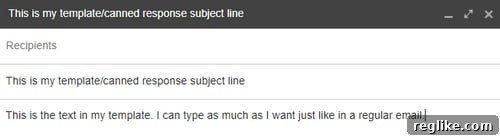
- In the subject line field, type the desired subject for your template. This subject will also be saved with the template. For example, “Thank You for Your Inquiry” or “Podcast Guest Onboarding Instructions.”
- In the email body, type or paste the text you want to save as your template. Include any necessary formatting (bold, italics, links) and placeholders for personalization (e.g.,
[Client Name],[Project Details],[Meeting Date]). - Important Note: Do not add recipients (To, Cc, Bcc) at this stage. These fields will not be saved as part of the template.
- Access the Templates Menu:
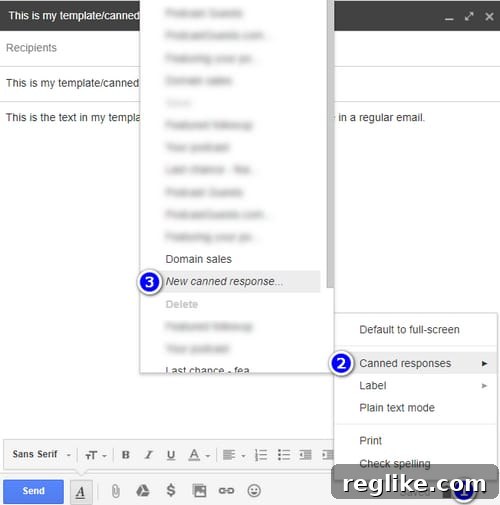
- Once your draft is complete, look for the “More options” icon (which looks like three vertical dots ⋮ or a downward arrow ▼ in older interfaces) located in the bottom-right corner of the compose window.
- Click on this icon.
- Save as a New Template:
- From the menu that appears, hover your mouse over “Templates” (or “Canned responses”).
- A sub-menu will open. Under the “Save draft as template” section, click on “Save new template.”
- Name Your Template:
- A small pop-up window will appear, asking you to “Enter new template name.”
- Type a clear, descriptive name for your template (e.g., “Customer FAQ – Returns,” “New Client Welcome,” “Domain Sale Disclaimer”). This name will help you easily identify it later.
- Click “OK.”
Your template is now saved and ready for use!
Inserting and Managing Your Canned Responses (Templates)
Once created, inserting a template is just as easy as creating one. You can insert templates into new emails, replies, or even existing drafts.
How to Insert a Template:
- Start a New Email or Open an Existing One:
- Click “Compose” for a new message, or open an email you wish to reply to.
- Access the Templates Menu:
- In the compose window, click the “More options” icon (three vertical dots ⋮ or downward arrow ▼) in the bottom-right corner.
- Hover over “Templates.”
- Select and Insert Your Template:
- A sub-menu will appear. Under the “Insert template” section, you’ll see a list of all your saved templates.
- Click on the name of the template you wish to insert.
The content of your chosen template, including its subject line (if saved with one), will instantly populate your email draft. From here, you can personalize the placeholders, add specific details, and send your message.
Managing Your Templates:
- Overwriting an Existing Template: If you need to update a template, simply open a new compose window, insert the old template, make your edits, then go to “More options” > “Templates” > “Save draft as template” and click on the name of the existing template you want to overwrite. Gmail will ask for confirmation.
- Deleting a Template: To remove an outdated or unused template, open a new compose window, go to “More options” > “Templates” > “Delete template” and select the template you wish to remove. Confirm the deletion when prompted.
Advanced Tips and Best Practices for Maximizing Templates
To truly unlock the power of Canned Responses, consider these best practices:
- Personalize, Always Personalize: Templates are meant to save time, not make your emails sound robotic. Always take a moment to customize placeholders (like `[Recipient Name]`), add a personal opening line, or reference something specific from their message. A little personalization goes a long way.
- Use Clear Placeholders: When creating templates, use obvious placeholders that are easy to spot and replace. Examples: `[[INSERT NAME HERE]]`, `[DATE OF MEETING]`, `{LINK TO RESOURCE}`.
- Create a Template Library: Don’t limit yourself to one or two. Build a diverse library for different scenarios: FAQs, introduction emails, follow-ups, price quotes, thank-yous, project updates, and more.
- Descriptive Naming Conventions: Name your templates clearly and concisely so you can quickly find the right one. For instance, instead of “Follow Up 1,” use “Client Follow-up – Initial Inquiry” or “Sales Pitch Follow-up – No Response.”
- Regular Review and Updates: Business information, policies, or even your tone of voice can change. Periodically review your templates to ensure they are up-to-date and still relevant.
- Leverage Subject Lines: Remember, the subject line you type when saving a template also gets saved. This is incredibly useful for standard email types, as it means you don’t even have to type a subject.
- Consider Your Signature: Gmail typically inserts your default signature at the very bottom of your email. Design your templates to flow naturally above your signature.
- Combine with Other Gmail Features: Use templates in conjunction with Scheduled Send for perfectly timed follow-ups, or integrate them into your workflow when managing tasks with Gmail’s built-in task list.
Real-World Use Cases and Examples: Streamlining Your Email Life
The utility of Canned Responses (Templates) extends across virtually every profession and personal communication need. Here are some expanded examples to inspire your own usage:
1. Enhancing Customer Service and Support
- Frequently Asked Questions (FAQs): Create templates for common queries about product features, service cancellations, shipping policies, or password resets. This ensures consistent and quick responses.
- Standard Greetings/Closings: A polite initial acknowledgment, a “thank you for your patience” message, or a standard “how to reach us” closing can be templated.
- Troubleshooting Steps: For technical support, detailed step-by-step troubleshooting guides can be saved as templates, ready to be inserted when a user reports a specific issue.
- Apology Letters: If your business occasionally needs to apologize for service disruptions or errors, a carefully worded template ensures you convey empathy and provide necessary information consistently.
2. Revolutionizing Sales, Marketing, and Outreach
- Initial Outreach Emails: Craft compelling templates for cold outreach, introducing your services or products. Remember to include placeholders for personalization.
- Sales Follow-ups: Create a series of follow-up templates (“1st Follow-up,” “Value Add Follow-up,” “Last Attempt Follow-up”) to nurture leads systematically.
- Price Quotes and Proposals: While specific details will vary, the structure, disclaimers, and standard terms of a price quote or mini-proposal can be templated.
- Event Invitations/Confirmations: For webinars, workshops, or virtual meetings, templates for invitations, RSVP confirmations, and reminder emails save immense effort.
3. Optimizing Recruiting and HR Communications
- Application Acknowledgments: Instantly confirm receipt of job applications, setting expectations for the next steps.
- Interview Invitations: Standardize the details of interview logistics, including date, time, location/virtual link, and who the candidate will meet.
- Candidate Rejection Letters: While never easy, templates ensure that rejection letters are handled professionally, consistently, and with appropriate sensitivity.
- Onboarding Information: Welcome new hires with templates providing first-day instructions, IT setup details, or links to essential resources.
4. Streamlining Internal Communications and Project Management
- Weekly Project Updates: Structure your project updates with templates that include sections for “Progress This Week,” “Upcoming Tasks,” “Blockers,” and “Key Decisions.”
- Meeting Summaries: After recurring meetings, a template for documenting action items, decisions, and next steps ensures clarity and accountability.
- Standard Reports: If you frequently send out status reports or data summaries, the basic framework and introductory/concluding remarks can be templated.
5. Personal and Administrative Use (Expanding on Original Examples)
Example 1: Adding a Disclaimer to Domain Name Inquiries
As highlighted in the original content, for entrepreneurs dealing with asset sales, such as domain names, legal clarity is paramount. I use a “domain sales” template that inserts a crucial disclaimer. This template might include:
Dear [Prospective Buyer Name],
Thank you for your interest in [Domain Name]. We're pleased to provide a quote of [Quote Amount] for the acquisition of this domain.
IMPORTANT DISCLAIMER: Please be advised that [Domain Name] may also be listed for sale on various third-party marketplaces and is subject to prior sale. While we strive to update our listings promptly, this quote does not guarantee availability until a formal agreement is executed and payment is received. All quotes are valid for a period of [e.g., 48 hours] from the time of this email. Should you wish to proceed, please respond within this timeframe.
We look forward to hearing from you.
Sincerely,
[Your Name]
This template, inserted after a personalized opening, ensures that critical terms like “subject to prior sale” and “quote expiration” are never missed, protecting both parties and clarifying the transaction process.
Example 2: Sending Out Regular Confirmation Emails for Services (e.g., PodcastGuests.com)
For services requiring routine administrative tasks, like confirming bookings or onboarding new users, templates are invaluable. For my PodcastGuests.com service, I send out numerous weekly confirmation emails. Instead of retyping instructions, I have a template like this:
Hi [Guest Name],
Thank you for submitting your profile to PodcastGuests.com! Your profile has been approved and is now live.
You can view your live profile here: [Profile URL]
Here are a few quick tips to help you get started:
- Keep your profile updated with your latest expertise and media appearances.Respond promptly to any podcast host inquiries.
- Share your PodcastGuests.com profile on your social media to increase visibility!
If you have any questions, please don't hesitate to reach out.
Best regards,
The PodcastGuests.com Team
The only unique piece of information is the `[Profile URL]`, which I quickly paste in. This saves significant time and ensures every new guest receives the same essential information and helpful tips.
Example 3: Regular Follow-up Emails
Follow-ups are critical in sales, project management, and networking. Having templates for different stages of follow-up (e.g., “gentle reminder,” “checking in with new information,” “final attempt”) makes this process systematic and less time-consuming. These templates can be used for following up with clients who haven’t responded, checking in on project milestones, or reminding colleagues about deadlines.
Conclusion: Your Path to Email Mastery
Gmail Canned Responses, now known as Templates, are far more than a simple shortcut; they are a strategic asset for anyone serious about optimizing their digital communication. By enabling this powerful feature and integrating it thoughtfully into your workflow, you can:
- Slash the time you spend on repetitive email tasks.
- Ensure unparalleled consistency and professionalism in your communications.
- Reduce mental fatigue and focus on more impactful work.
- Scale your communication efforts efficiently.
Whether you’re a busy entrepreneur, a dedicated customer service professional, a meticulous project manager, or simply someone looking to regain control of their inbox, Templates offer a robust solution. Stop copying and pasting from external documents, and definitely stop re-typing the same messages. Embrace Gmail Templates today and unlock a new level of email productivity and peace of mind.
Start streamlining your inbox today and experience the profound difference this simple yet powerful feature can make!