
Unlock invaluable insights into the domain name market by mastering the Verisign DomainScope API. This comprehensive tutorial guides you through creating a robust system to automatically collect and store monthly popular keywords for .com and .net domain registrations, empowering you with data-driven decision-making.
For domain investors, developers, and market analysts, staying abreast of trending keywords in new domain registrations is paramount. These insights reveal emerging market demands, potential investment opportunities, and shifting consumer interests. Historically, Verisign, the authoritative registry for .com and .net, offered a highly anticipated monthly email and blog post detailing the top trending keywords derived from recent .com and .net domain registrations. This valuable resource provided a quick and easy snapshot of the domain landscape, helping many identify lucrative niches and optimize their domain acquisition strategies. However, this much-loved tradition sadly concluded around the fourth quarter of 2019, leaving a significant void for those who relied on this curated data.
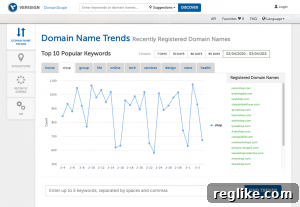
Fortunately, Verisign continues to provide an online interface, DomainScope, which offers visitors a glimpse into the top 10 popular keywords for recently registered domains. This web-based tool allows users to examine data for the last 7, 30, 60, or 90 days, or even define a custom time period. While this immediate access is a convenient feature for a casual observer seeking quick trends, it doesn’t replicate the comprehensive, exportable, and historically rich reports that were previously available. The layout and depth of information differ, making it challenging to perform in-depth analysis or maintain a historical archive of trends.
For those who require more than a fleeting glance at domain keyword popularity – for those who need actionable data stored in their own control – the cessation of Verisign’s monthly reports presented a challenge. But fear not, as this tutorial offers a powerful solution. Today, we’re unveiling a method to leverage the DomainScope API to construct your own custom database. This personalized system will enable you to continuously track and archive top popular keywords on a monthly basis, effectively recreating and even surpassing the utility of the original Verisign reports. Furthermore, with minor adjustments, this framework can be extended to retrieve daily keyword information, offering an even more granular view of market dynamics if desired. This capability transforms a static, limited view into a dynamic, expandable data repository at your fingertips.
Before we delve into the practical implementation, it’s important to set expectations. This tutorial is designed to be accessible and focuses on the core steps required to get your system up and running. While we’ll touch upon key technical aspects, it is not an exhaustive, line-by-line breakdown of every character of code or a play-by-play commentary suitable for absolute beginners in programming. A basic understanding of web development concepts, particularly PHP and MySQL, will be beneficial. However, even if coding isn’t your primary expertise, you should be able to follow along by carefully reading between the lines and utilizing the provided sample files. The goal is to empower you with a functional solution, not to turn you into an API development expert overnight.
To ensure you have everything you need, a sample file will be provided at the conclusion of this tutorial. This file will contain the essential code snippets and functions necessary to implement the system described herein, acting as a valuable reference and starting point for your own setup. It aims to bridge any potential technical gaps, allowing you to focus on adapting the solution to your specific environment.
Before we embark on the implementation journey, let’s ensure you have the foundational elements in place. Gathering these prerequisites beforehand will streamline the entire process and prevent unnecessary interruptions. You will need to confirm the availability of the following items:
- Access to the comprehensive DomainScope API Documentation: This will serve as your authoritative reference for API endpoints, parameters, and response structures.
- An active DomainScope API Account: You will need valid API credentials to authenticate your requests and access the data. Ensure your account is set up and your API key is readily available.
- A local development environment or a web server configured with PHP and MySQL: This will provide the necessary runtime for your PHP script and the database engine to store your keyword data. Solutions like XAMPP or WAMP are excellent for local setups.
Setting Up Your Database and Table for Top Popular Keywords Data
With the essential prerequisites met, you are now ready to establish the backbone of your keyword tracking system: the MySQL database and its accompanying table. This step is crucial for persistent storage of the valuable keyword data you will retrieve from the DomainScope API. A well-structured database ensures data integrity, efficient retrieval, and robust long-term analysis capabilities.
For the purpose of this tutorial, we will name our database domainscope. Within this database, we will create a table named popkeywords. This table is meticulously designed to store all relevant keyword information, including counts for .com and .net registrations, along with important metadata. It comprises the following columns, each serving a specific purpose in organizing and tracking your data:
- pkid – This column will serve as the auto-incrementing primary key for our table, uniquely identifying each keyword entry. It ensures that every record has a distinct identifier, which is essential for database management and efficient data retrieval.
- keyword – As the name suggests, this column will store the actual popular keyword retrieved from the DomainScope API, providing the core textual data we are tracking.
- total_count – This integer column is designed to track the combined total count of both .com and .net domain registrations that contain the given keyword within the specified time period. It offers an aggregated view of the keyword’s popularity.
- com_count – This column specifically tracks the count of .com domain registrations containing the given keyword for the particular time period. It provides detailed insight into the keyword’s popularity within the highly coveted .com namespace.
- net_count – Similarly, this column tracks the count of .net domain registrations containing the given keyword for the defined time period. It offers a parallel view of popularity within the .net extension, complementing the .com data.
- date – This datetime column records the specific time period (e.g., the first day of the month) for which the keyword data was collected. It is vital for maintaining a historical record and accurately attributing keyword counts to their respective reporting periods.
- createDate – This timestamp column automatically records when a table row was initially inserted or last updated. It provides useful auditing information, allowing you to track the freshness and modification history of your keyword data.
If you are proficient with MySQL’s command-line interface or comfortable using the SQL feature within tools like phpMyAdmin, you can simply execute the following SQL commands. These commands will create the `popkeywords` table with the specified columns and set up the primary key with auto-increment functionality.
CREATE TABLE `popkeywords` (
`pkid` int(10) UNSIGNED NOT NULL,
`keyword` varchar(255) NOT NULL,
`total_count` int(10) UNSIGNED NOT NULL,
`com_count` int(10) UNSIGNED NOT NULL,
`net_count` int(10) UNSIGNED NOT NULL,
`date` datetime NOT NULL,
`createDate` timestamp NOT NULL DEFAULT CURRENT_TIMESTAMP ON UPDATE CURRENT_TIMESTAMP
) ENGINE=InnoDB DEFAULT CHARSET=utf8;
ALTER TABLE `popkeywords`
ADD PRIMARY KEY (`pkid`);
ALTER TABLE `popkeywords`
MODIFY `pkid` int(10) UNSIGNED NOT NULL AUTO_INCREMENT, AUTO_INCREMENT=1;
COMMIT;
Should you be less familiar with directly interacting with MySQL via command line or phpMyAdmin’s SQL console, most web hosting providers offer user-friendly graphical interfaces within their control panels (e.g., cPanel, Plesk) to manage databases. Navigate to your hosting control panel’s database section, where you can typically create a new database and then add tables and define their columns using intuitive forms. For those utilizing phpMyAdmin and seeking guidance, SiteGround.com provides excellent tutorials that can help you quickly become accustomed to database management within phpMyAdmin, covering everything from creating databases to modifying table structures.
Connecting to Your Database Using a PHP Script
With your database and table successfully prepared, the next crucial step is to enable your PHP script to establish a connection. This connection serves as the bridge between your application logic and the data storage, allowing the script to read, write, and update the keyword information. Using a text editor of your preference (such as VS Code, Sublime Text, or Notepad++), create a new file and save it as top-popular-keywords-db.php. This file will house all the PHP code for our keyword tracking system.
Before you write any connection code, ensure you have gathered the following critical database credentials. These are unique to your MySQL setup and are absolutely essential for a successful connection:
- Database hostname: This is typically ‘localhost’ if your database is on the same server as your PHP script, but it could be a specific IP address or domain name provided by your hosting provider.
- Database username: The username authorized to access your `domainscope` database.
- Database password: The password associated with the database username.
- Database name: In our case, this will be `domainscope`.
Once you have accurately identified these credentials, you will define corresponding PHP variables and assign their respective values. It is paramount that these values are correct to prevent connection errors.
$dbhost = ”;
$dbuser = ”;
$dbpassword = “”;
$dbdatabase = ”;
Next, leveraging PHP’s robust built-in function for MySQLi connections, mysqli_connect, you will pass each of these variables as comma-delimited arguments. This function attempts to establish a connection to your MySQL server. Remember to define the $db variable, which will hold the connection object upon success.
$db = mysqli_connect($dbhost,$dbuser,$dbpassword,$dbdatabase);
To ensure the robustness of your script, it’s vital to incorporate error checking. This prevents the script from silently failing and provides immediate feedback if a connection cannot be established. The following code snippet will detect a connection failure and output a descriptive error message to the web page, aiding in troubleshooting:
if (mysqli_connect_errno())
{
echo “Failed to connect to MySQL: ” . mysqli_connect_error();
exit(); // Exit the script if connection fails to prevent further errors
}
Understanding API Credentials and Variables for DomainScope
With your database connection established, our focus shifts to interacting with the Verisign DomainScope API itself. Before proceeding, it is highly recommended to have the DomainScope API Documentation open and readily accessible. This documentation is your definitive guide to understanding the API’s capabilities, required parameters, and expected responses, ensuring you construct accurate and effective requests.
The DomainScope API offers a powerful suite of programmatic access methods to Verisign’s extensive domain name data. Currently, there are seven distinct API methods, each designed to retrieve specific types of information:
- Pending Delete Search: Allows you to search for domains that are in the process of being deleted.
- Domain Name Registration History: Provides historical registration data for specific domain names.
- Domain Name Lookup: Enables real-time lookup of domain name availability and status.
- Top Trending Keywords: Identifies keywords showing a significant surge in recent registrations.
- Trending Keywords: Offers a broader view of keywords gaining traction over time.
- Top Popular Keywords: Focuses on the most frequently occurring keywords in newly registered domains.
- Popular Keywords: Provides a more extensive list of popular keywords beyond the “top” tier.
While you are encouraged to explore each method to uncover the full potential of the DomainScope API for your domain research needs, our specific objective today is to replicate the historical “top popular keywords” reports. Therefore, we will concentrate our efforts on the Top Popular Keywords method. This method is perfectly suited for identifying and tracking the most prevalent keywords appearing in new .com and .net registrations over a specified period.
Although the Top Popular Keywords API method has no strictly required parameters, we will utilize two highly useful optional parameters: $start_date and $end_date. These parameters allow us to precisely define the time window for which we want to retrieve keyword data, making our data collection targeted and relevant. The flexibility to set these dates is critical for capturing monthly data, or even daily, depending on your automation strategy.
The following code snippet provides both hardcoded date variables (commented out) and dynamic date variables. While hardcoded dates are useful for initial testing or retrieving data for a specific, one-off period, it is highly recommended to use dynamic date variables for an automated system. Dynamic dates, particularly those that automatically determine the previous month’s start and end dates, are indispensable if your plan involves scheduling this script to execute automatically on a monthly basis (or daily, if you opt for daily keyword information). This automation ensures your database is consistently updated with fresh data without manual intervention.
Place the following code immediately after your database connection code from the preceding section:
// HARDCODED DATES (Useful for one-time fetches or specific historical data)
//$start_date = ‘2020-02-01’;
//$end_date = ‘2020-02-29’;
// DYNAMIC DATES (Recommended for automated, recurring data collection)
// This calculates the first and last day of the previous month.
$start_date = date(“Y-m-d”, strtotime(“first day of previous month”));
$end_date = date(“Y-m-d”, strtotime(“last day of previous month”));
Next, we construct the API request URL. This URL is the specific endpoint our script will call, incorporating the API’s base URL and appending our dynamically generated start and end dates as query string parameters. This ensures the API knows exactly which data range we are interested in.
// API URL REQUEST construction for Top Popular Keywords
$url = “https://domainscope.com/api/v2.1/keywords/popularity/top?”;
$url .= “start_date=$start_date&end_date=$end_date”;
Finally, to authenticate your request with the DomainScope API, you need to include your unique API key in the request header. This key validates your access and ensures you are authorized to retrieve data. Define and set your API credentials using the following code, remembering to replace the placeholder with your actual key:
// SET API KEY CREDENTIALS for authentication
$header = array(
‘Accept: application/json’, // Specifies that we expect a JSON response
‘X-DOMAINSCOPE-APIKEY: XXXXXXXXXXXXXXXXX’ // Your unique DomainScope API Key goes here
);
NOTE: It is critical to replace ‘XXXXXXXXXXXXXXXXX’ with your actual, unique DomainScope API Key. Failure to do so will result in authentication errors and prevent data retrieval. Always keep your API key secure and avoid exposing it in public repositories.
Making the API Request to Retrieve Top Popular Keywords Data
With the API URL and authentication headers correctly configured, the next logical step is to execute the API call and fetch the data. For this purpose, we will employ PHP’s powerful cURL library. cURL is a versatile command-line tool and library for transferring data with URLs, and PHP’s cURL extension allows us to programmatically interact with web servers and APIs. It is the industry-standard method for making HTTP requests in PHP.
While the intricacies of cURL can be extensive, we’ll focus on the essential options required for our specific API request. One detail to pay particularly close attention to is the `$url` variable, which we constructed in the previous section. This variable holds the complete endpoint we intend to query. Copy and paste the following comprehensive cURL code block immediately after where you defined your API key credentials:
// INITIATE CURL CALL to the DomainScope API
$ch = curl_init(); // Initializes a new cURL session
$timeout=60; // Sets a timeout of 60 seconds for the cURL operation
// Configure various cURL options for the API request
curl_setopt($ch, CURLOPT_URL, $url); // Set the URL to fetch
curl_setopt($ch, CURLOPT_FOLLOWLOCATION, true); // Follow any ‘Location:’ header that the server sends
curl_setopt($ch, CURLOPT_RETURNTRANSFER, true); // Return the transfer as a string instead of outputting it directly
curl_setopt($ch, CURLOPT_CONNECTTIMEOUT, $timeout); // The maximum number of seconds to allow cURL to connect
curl_setopt($ch, CURLOPT_SSL_VERIFYPEER, false); // IMPORTANT: For development/testing, you might disable SSL verification. For production, ALWAYS set this to true and configure proper CA certs.
curl_setopt($ch, CURLOPT_CUSTOMREQUEST, ‘GET’); // Specifies the HTTP method to use (GET in this case)
// curl_setopt($ch, CURLOPT_POSTFIELDS, $variable); // Uncomment and use for POST requests with data
// curl_setopt($ch, CURLOPT_POST, true); // Uncomment and use for POST requests
curl_setopt($ch, CURLOPT_HTTPHEADER, $header); // Set the custom HTTP headers, including our API key
// Execute the cURL session and retrieve the response data
$result = curl_exec($ch);
// Close the cURL connection to free up resources
curl_close($ch);
Each `curl_setopt` line configures a specific behavior of the cURL request: `CURLOPT_URL` points to our API endpoint; `CURLOPT_FOLLOWLOCATION` ensures we follow any redirects; `CURLOPT_RETURNTRANSFER` is crucial as it tells cURL to return the server’s response as a string, rather than printing it directly to the browser; `CURLOPT_CONNECTTIMEOUT` sets a reasonable limit for connection establishment; `CURLOPT_SSL_VERIFYPEER` is often set to false in development for convenience, but for production systems, it should be `true` for security reasons to verify the SSL certificate of the API server. Finally, `CURLOPT_HTTPHEADER` injects our API key for authentication. After configuration, `curl_exec($ch)` sends the request and stores the raw response in the `$result` variable. The `curl_close($ch)` command then terminates the cURL session, releasing system resources.
Parsing, Tracking, and Displaying Top Popular Keywords Data
This section represents the culmination of our efforts, where the raw data retrieved from the DomainScope API is transformed into structured, actionable information and stored in your database. I will again spare you the granular, line-by-line exposition, as the primary goal is to empower you to implement this solution. However, it is paramount to understand that this phase is arguably the most critical part of the entire tutorial. It involves correctly interpreting and processing the API’s response data – the JSON object – into a format that can be effectively stored and displayed.
When the DomainScope API responds, it typically sends data in JSON (JavaScript Object Notation) format. JSON is a lightweight data-interchange format, easy for humans to read and write, and easy for machines to parse and generate. Before we can work with this data in PHP, the JSON string needs to be decoded into a native PHP data structure (an associative array or object). To accomplish this, we utilize PHP’s built-in function, json_decode, as demonstrated below:
$dn = json_decode($result, true);
The `json_decode($result, true)` function takes the raw JSON string (stored in `$result` from our cURL call) and converts it into a PHP associative array. The `true` argument is crucial here, as it forces the decoder to return associative arrays instead of objects, which are often easier to work with when accessing data by key names. If this line of code were omitted or executed incorrectly, the script would be unable to parse the API response, rendering all subsequent steps for data tracking and display ineffective.
To prepare the data for both output to a web page and insertion/update into our database table, we will employ a couple of foreach statements. These loops will iterate through the decoded API response, processing each keyword entry individually. Furthermore, for efficient database management, we will integrate three helper functions. These functions encapsulate the logic for interacting with our `popkeywords` table, promoting clean code and reusability. You will find the complete definitions of these functions in the downloadable code provided at the end of this tutorial:
- checkKeywordData – This essential function queries the database to determine if a specific keyword, for a given time period, already exists in our `popkeywords` table. It prevents duplicate entries and informs whether an insert or update operation is needed.
- updateKeywordData – If `checkKeywordData` indicates an existing record, this function is called to update the keyword’s total count, .com count, .net count, and the associated time period in the database. This ensures our data remains current and accurate for existing keywords.
- insertKeywordData – When a new keyword for a particular time period is encountered (i.e., `checkKeywordData` returns false), this function is responsible for inserting a new record into the `popkeywords` table, capturing all relevant keyword, count, and date information.
Integrate the following PHP code directly after the line where you defined the $dn variable. This block will display the time period, iterate through the API response, and conditionally insert or update keyword data in your database:
echo “Time Period: $start_date through $end_date.
“; // Display the current data collection period
foreach($dn as $keyword){ // Outer loop for the main structure of the API response
foreach($keyword as $eachKeyword){ // Inner loop to access individual keyword details
// Set the date for the current keyword data, adding it to the $eachKeyword array for consistency
$eachKeyword[‘date’] = $start_date;
echo $eachKeyword[‘keyword’].’
‘; // Output the keyword to the web page for immediate feedback
// CHECK IF KEYWORD ALREADY EXISTS FOR THE GIVEN MONTH/TIME PERIOD
$chk_results = checkKeywordData($eachKeyword);
if($chk_results){ // If the keyword data already exists for this period
// UPDATE THE EXISTING KEYWORD’S DATA FOR THE GIVEN MONTH
$upd_results = updateKeywordData($eachKeyword);
if($upd_results){
echo ‘‘.$eachKeyword[‘keyword’].’ was updated.
‘;
} else {
echo ‘‘.$eachKeyword[‘keyword’].’ was NOT updated.
‘;
}
} else { // If the keyword data does not exist for this period, it’s a new entry
// INSERT THE NEW KEYWORD’S DATA FOR THE GIVEN MONTH
$ins_results = insertKeywordData($eachKeyword);
if($ins_results){
echo ‘‘.$eachKeyword[‘keyword’].’ was inserted.
‘;
} else {
echo ‘‘.$eachKeyword[‘keyword’].’ was NOT inserted.
‘;
}
}
}
}
NOTE: Remember to include the full definitions for the three helper functions (`checkKeywordData`, `updateKeywordData`, and `insertKeywordData`) in your `top-popular-keywords-db.php` file. The complete code, including these functions, is available for download at the end of this tutorial. These functions are crucial for the database interaction logic.
Accessing and Verifying Top Popular Keywords Data in Your Database
At this significant juncture in the tutorial, your PHP script, `top-popular-keywords-db.php`, is fully equipped. It should now be capable of establishing a connection to your MySQL database, intelligently making an authenticated API call to Verisign’s DomainScope, retrieving the latest top popular keywords data for .com and .net registrations, and then meticulously inserting new keyword entries or updating existing ones in your `popkeywords` database table. The system you’ve built is now ready to collect and store valuable market insights.
To witness your hard work in action, navigate to the `top-popular-keywords-db.php` file in your web browser (e.g., `http://localhost/top-popular-keywords-db.php` or `http://yourdomain.com/top-popular-keywords-db.php`). Upon successful execution, you should see output similar to the following directly in your web browser. The exact keywords and counts will, of course, vary based on the current market trends and the date range specified:
In the illustrative example above, you might observe that the keyword descriptions use the term ‘updated’ for some entries. This typically occurs after the script has been executed more than once for the same time period. If this were the very first time the script was run to retrieve and store data for a specific period (e.g., February 2020), then the output would consistently display ‘inserted’, indicating that new records were added to your database rather than existing ones being modified. This distinction confirms that your `checkKeywordData`, `updateKeywordData`, and `insertKeywordData` functions are operating correctly, maintaining data integrity and preventing redundant entries.
An immediate follow-up question that often arises is, “How can I easily view data for previous months, or see all the collected data at once?” While creating a sophisticated web interface for comprehensive data visualization is beyond the scope of this particular tutorial, accessing your stored data is straightforward. The most common and direct method is through a database management tool like phpMyAdmin, which is typically provided by your web host or included in local development stacks (e.g., XAMPP, WAMP). To view your data, simply log into phpMyAdmin, select your `domainscope` database from the left-hand panel, then click on the `popkeywords` table. Finally, navigate to the ‘Browse’ tab. This tab will display all the records currently stored in your `popkeywords` table, allowing you to manually inspect the collected keyword data. While it may not be the most aesthetically pleasing or analytical interface, it serves as an excellent starting point for verifying your data and performing basic checks. It’s a pragmatic solution that gets the job done when you need direct access to your raw database content. 😉
Closing Thoughts and Next Steps
And that concludes our comprehensive tutorial for today! You have successfully established a powerful, automated system that enables you to retrieve and perpetually track monthly updates of the most popular keywords in recent .com and .net domain registrations directly from the Verisign DomainScope API. This eliminates the need to manually visit DomainScope.com for each data retrieval, providing you with a consistent, historical archive of invaluable market intelligence right in your own database. This level of control over your data empowers you to perform custom analysis, identify long-term trends, and make more informed decisions in the dynamic domain name market.
We sincerely hope that you find this tutorial immensely useful and that the system you’ve built contributes significantly to your domain research and investment strategies. To truly unleash the power of this solution, remember that automation is key. You can easily schedule your `top-popular-keywords-db.php` script to run automatically at desired intervals (e.g., monthly, weekly, or even daily) using a feature called cron jobs on Unix-like operating systems (including Linux web servers). Configuring a cron job will ensure your database is consistently updated with the latest keyword trends without any manual intervention, transforming this tool into a passive yet powerful data collector.
Beyond basic automation, there are numerous avenues through which this tutorial’s foundation can be expanded and enhanced. You could implement a more sophisticated web interface to visualize the historical keyword data, track changes in keyword popularity rankings over time, or integrate this data with other market intelligence sources. The stored data itself is a goldmine for trend analysis, allowing you to identify emerging niches, track the lifecycle of popular terms, and gain deeper, invaluable insights into the ever-evolving domain name landscape. The possibilities for leveraging this data for strategic advantage are vast and truly limited only by your imagination and technical curiosity.
We strongly encourage you to download the provided tutorial code, set up your database, make any necessary modifications to fit your specific environment (like API keys and database credentials), and then experiment. Discover how far you can take this tool and what unique insights you can unearth from your personalized dataset. The best way to learn and master these concepts is through hands-on practice and exploration.
DOWNLOAD top-popular-keywords.zip for Verisign DomainScope API
Finally, we value your feedback and engagement. Please do not hesitate to leave comments below if you have any questions, encounter technical challenges during implementation, or simply wish to share your experiences and improvements. Your contributions help foster a collaborative learning environment for the entire community. Thank you for following along, and we wish you the best in your domain research endeavors!