Searches to Decide Domain Renewals — Tracking Whois

Alvin Brown provides this tutorial for discovering how many Whois searches have been performed on your domain names registered at GoDaddy.
Deciding which domains to renew can be quite challenging for domain investors, especially for newly minted domain investors.
Personally, I use a number of factors to help me decide whether or not to renew a given domain.
Often times my decision comes down to domain age, traffic, parking revenue, search relevance, and a longer list of details I’ve picked up along the way.
In fact, I often feel like I’m Google and its 200+ search ranking factors as I’ve accumulated a growing number of varying renewal factors used to gauge a domain’s renewal status.
But one in particular I’d like to share today is tracking and using GoDaddy’s Whois searches as a factor in deciding domain renewals.
Note that this step-by-step tutorial in no way ought to be used as the SOLE factor to determine a domain’s renewal worthiness or value.
Why? Well, some of the Whois searches tracked by GoDaddy are often automated lookups, which could complicate things a bit when attempting to understand human and non-human Whois searches.
Nevertheless, if you register domains with GoDaddy, then I believe using Whois searches could help to understand and gauge relative interest in a given domain.
For instance, a domain could have 70 Whois searches performed on it while another domain has 2 Whois searches within a given month. Personally, I would give a bit more weight to a domain with 70 searches than I would a domain with 2 searches as this may be an indicator of people interested in buying the domain name
Used in conjunction with age, search relevance, and few more weighty factors, could help to establish a baseline for what types of domains remain in a portfolio each annual renewal period.
Let’s get started!
How to Track GoDaddy Domain Whois Searches
Open a web browser and log in to your GoDaddy account. Once in your account, find “Domains” section listed on “My Products” page and select “Manage” to be taken to the “Domain Manager”.
Once the “Domain Manager” page is displayed, select specific domains or choose to complete a Whois search note for all domains.
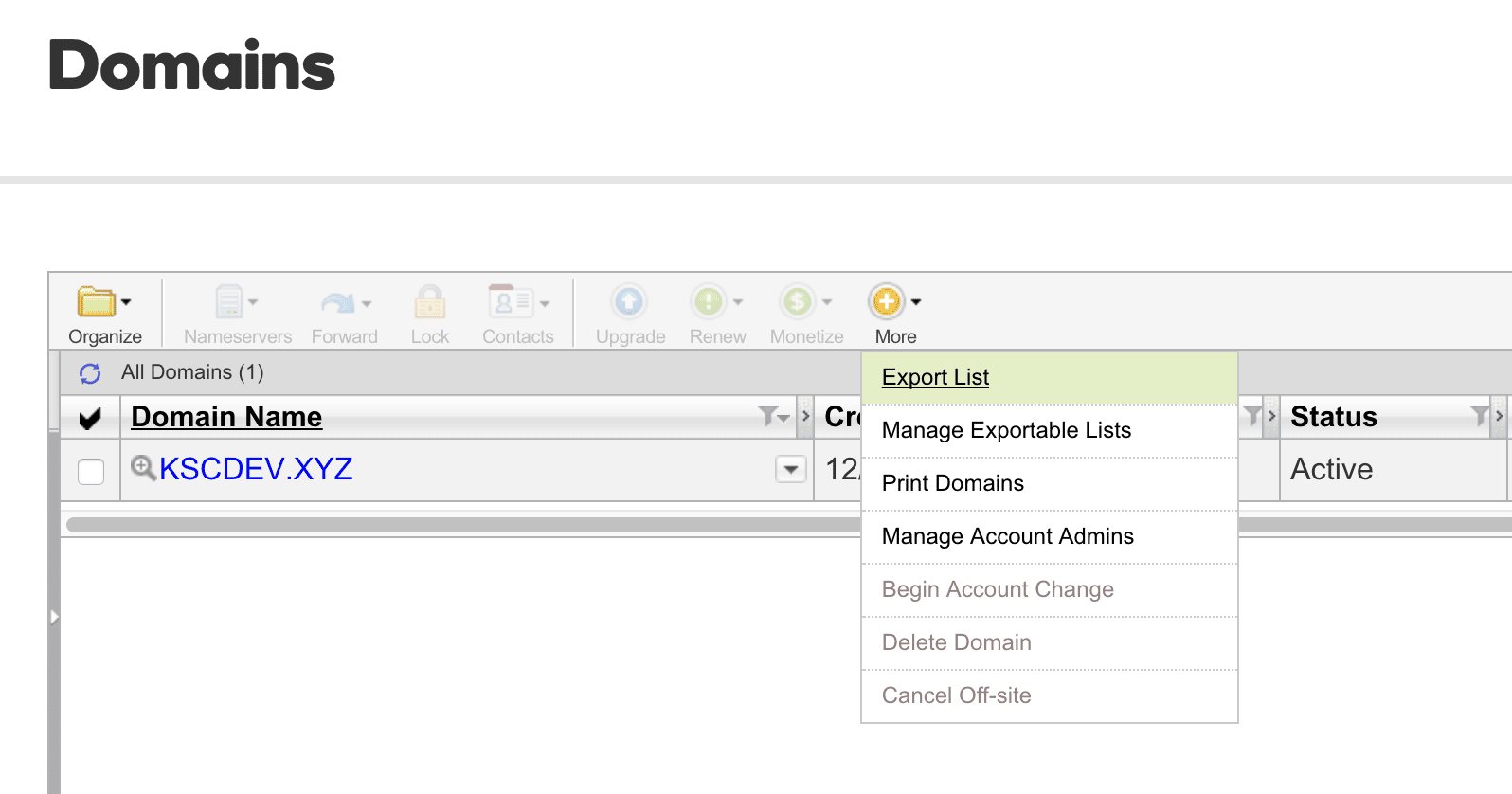
In today’s tutorial, I’ve elected to use a test account where I have a single domain: kscdev.xyz.
To create a Whois search note, hover over the “More” icon and select “Export List”.
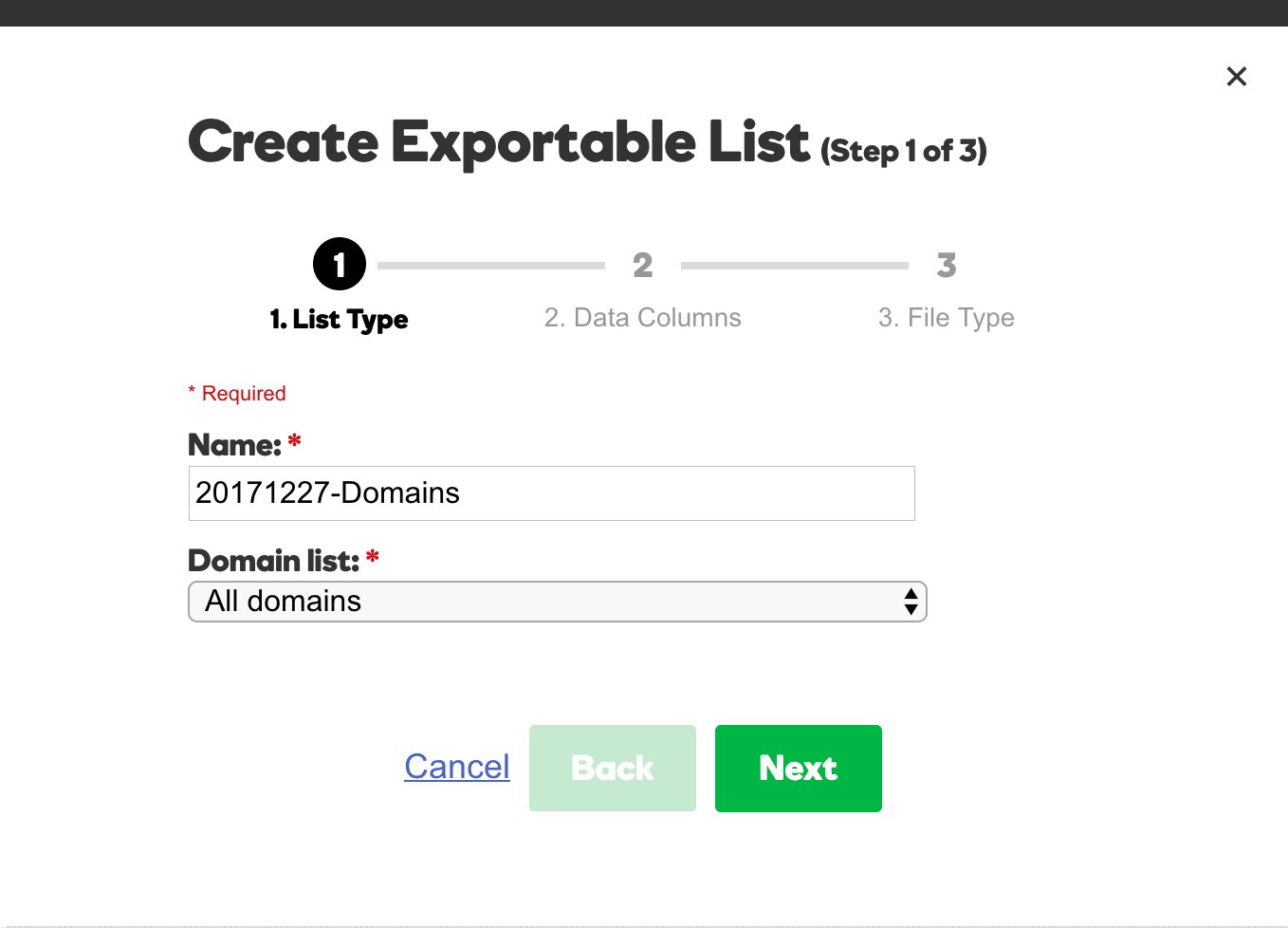
Next, the simple “Create Exportable List” popup window appears displaying 3 steps. Enter a name for the note. I’ve selected to use “20171227-Domains” as the note name.
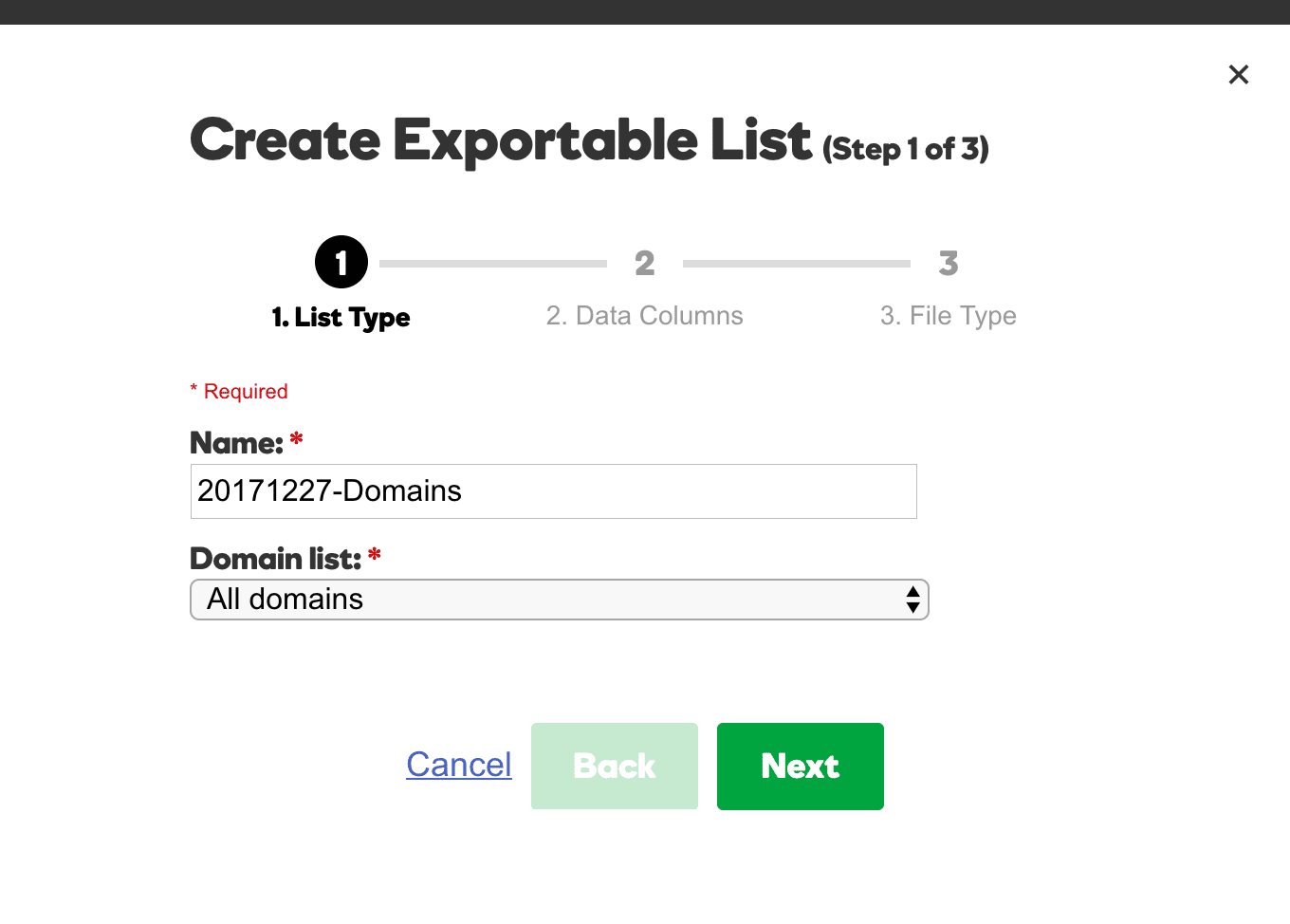
Once a note name has been entered, select the type of “Domain list” from the following options:
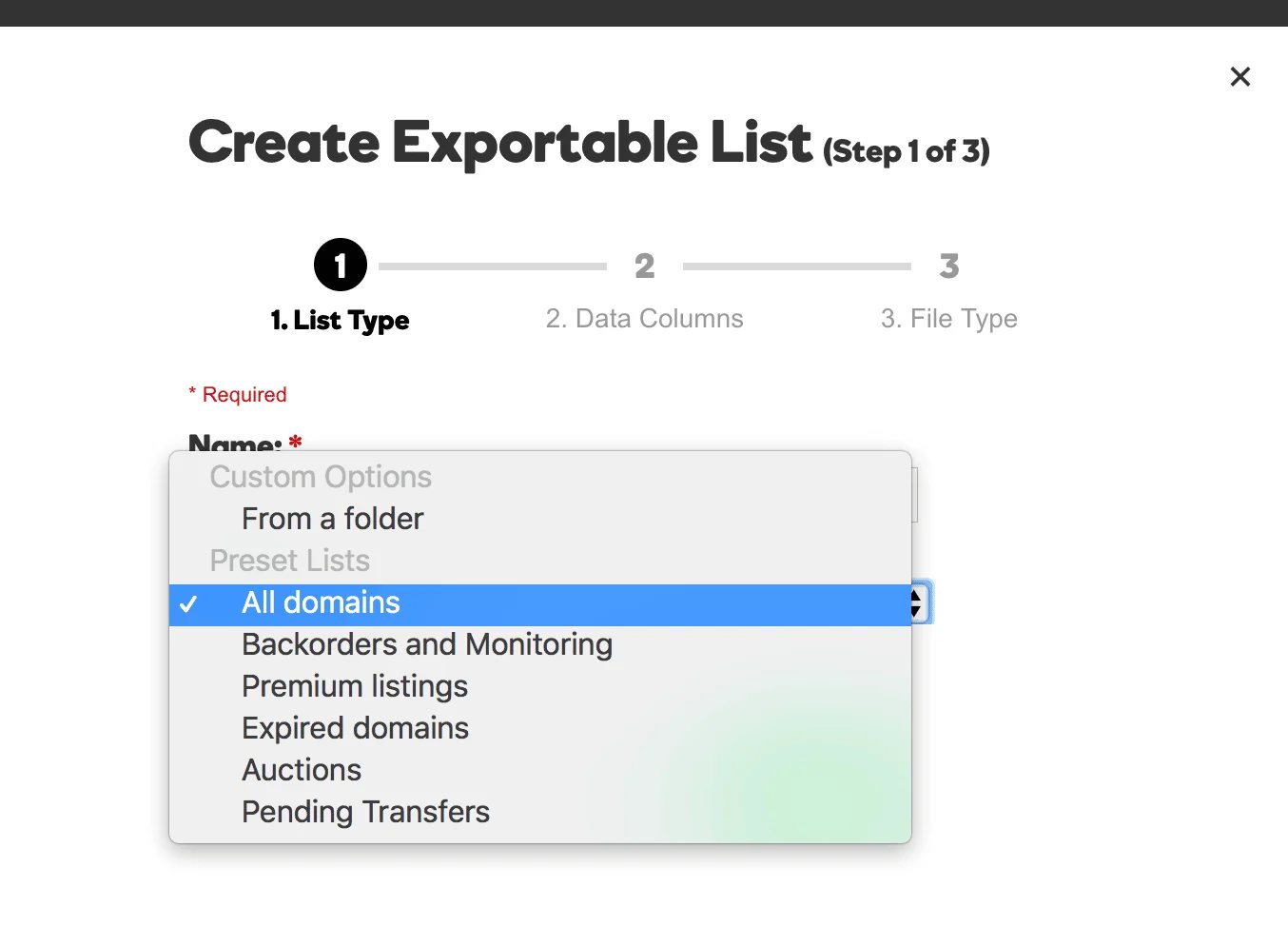
- Folder Options: if domains are organized via folders, then this option allows access to domains within a given folder
- All Domains: all domains associated with the account in its entirety
- Backorders and Monitoring: all domain backorders and monitoring associated with the account in its entirety
- Premium Listings: all domains associated with account and listed in GoDaddy’s Aftermarket as Premium listings
- Expired domains: all expired domains associated with the account in its entirety
- Auctions: all auctions associated with the account in its entirety
- Pending Transfers: all domains in pending transfer status associated with the account in its entirety
For simplicity, choose “All domains” and click “Next”.
In Step 2 of the “Create Exportable List” form, the desired data columns to be returned and viewed within the note need to be selected. The following options are available:
- Domain Name (checked by default)
- Expiration Date (checked by default)
- Status (checked by default)
- Nameservers
- Forwarding URL
- Auto Renew Status
- Create Date
- Folder Memberships
- Internationalized Domain Name
- Registrants Contacts
- Administration Contacts
- Technical Contacts
- Billing Contacts
- Hosts
- Whois Searches – Previous Period
- Whois Searches – Current Period
To return the Whois searches for previous and current periods, scroll to the bottom and check the box for both options.
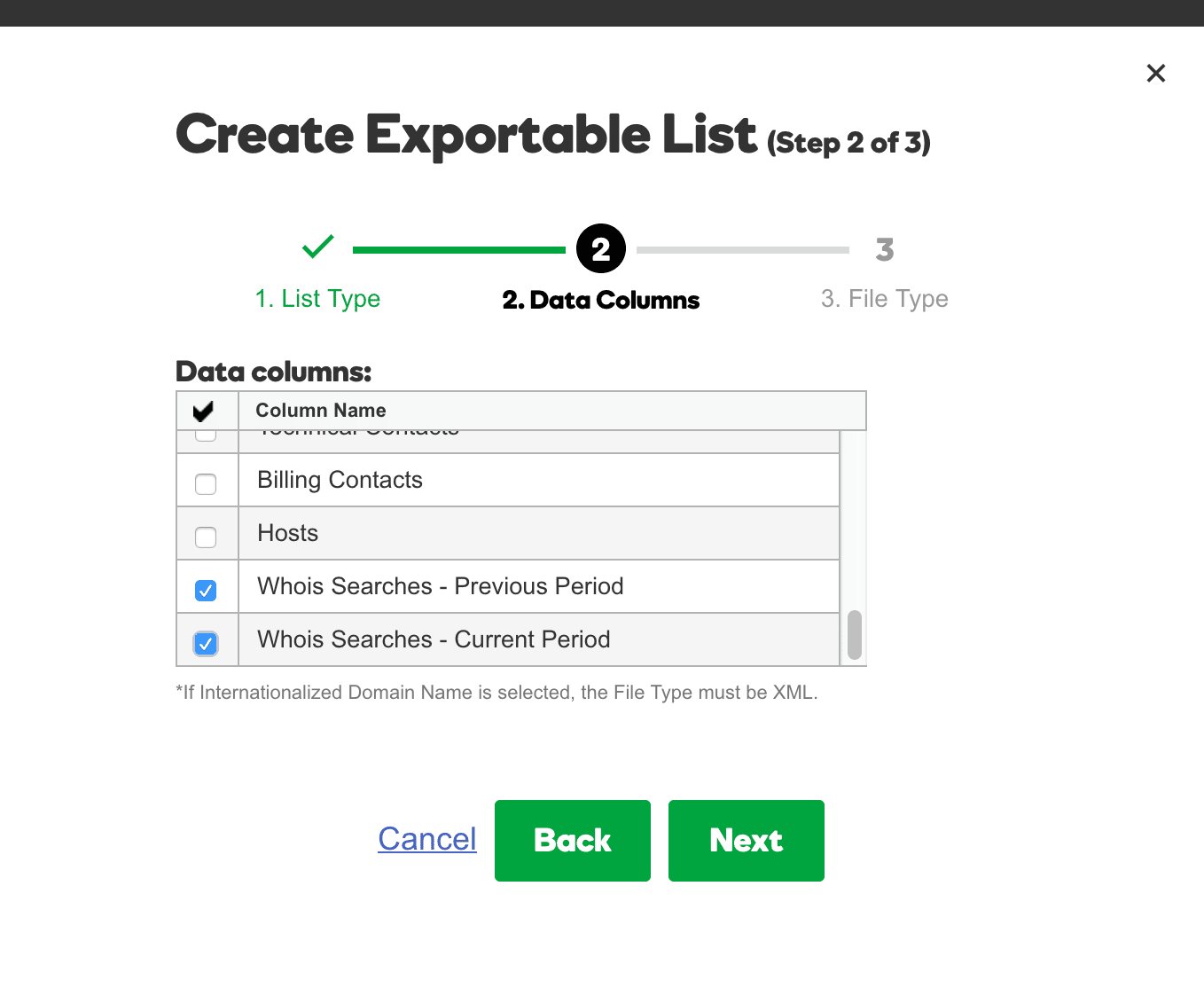
Once both check boxes have been selected for Whois Searches, click “Next”.
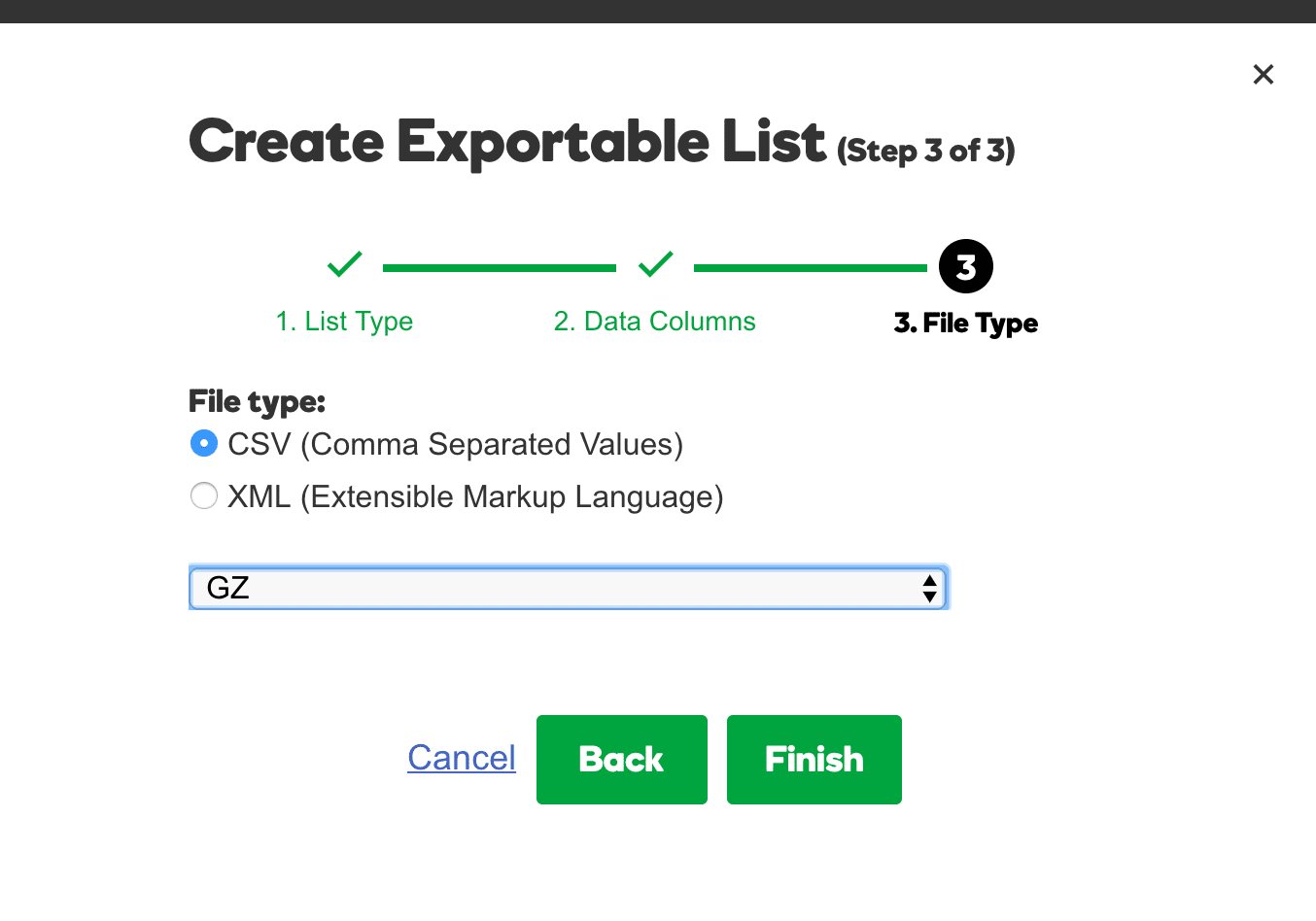
The third and final step of the “Create Exportable List” form is selecting the “File Type”. GoDaddy offers both CSV (Comma Separated Values) and XML (Extensible Markup Language).
By default, CSV is selected and GZ is the download output, meaning that the CSV note will be zipped or compressed into a .gz file.
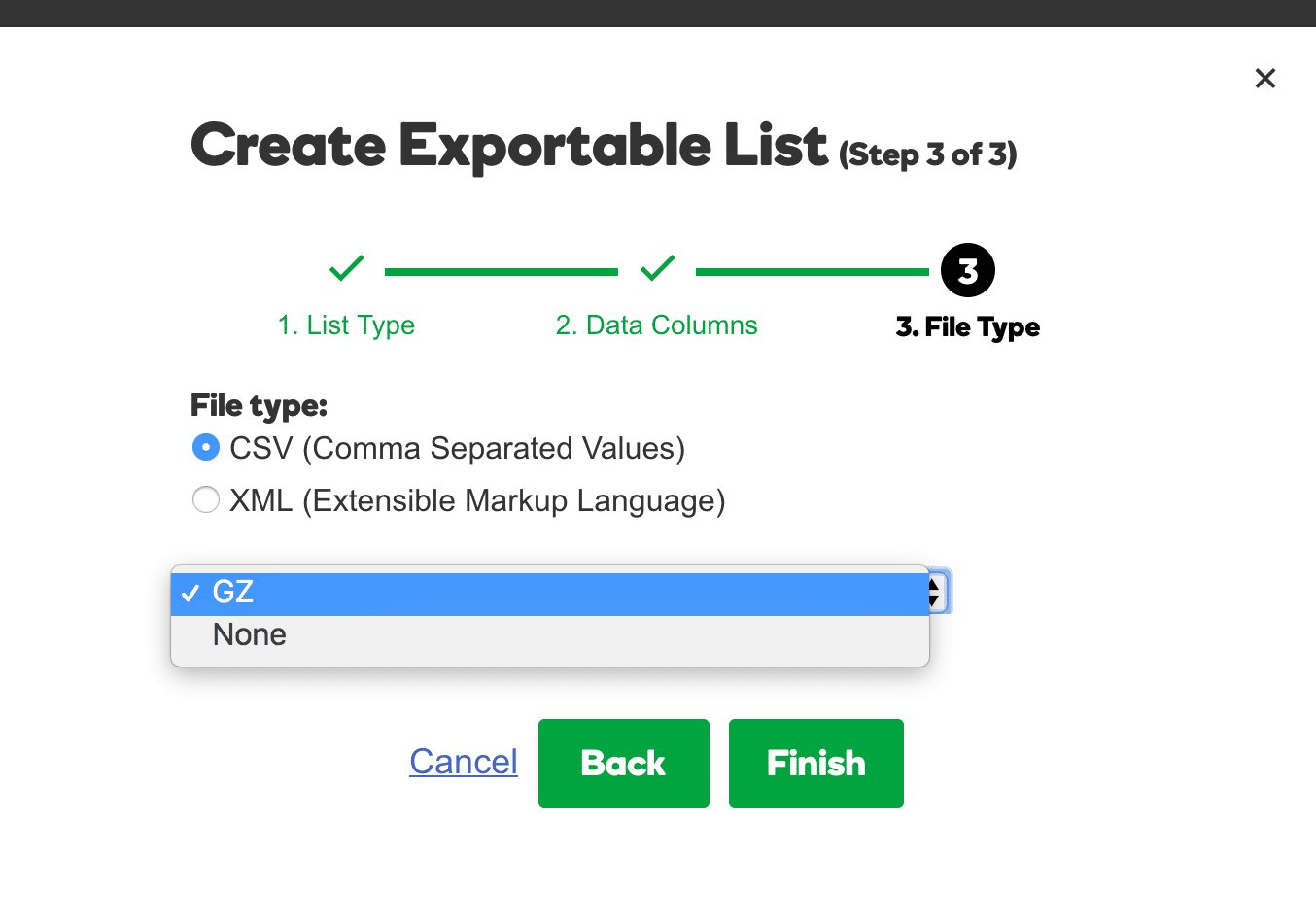
If “None” is selected, then the CSV note will NOT be zipped or compressed into a .gz file.
Although I chose GZ, I recommend selecting “None” and clicking “Finish” once ready to submit the note for creation.
Once the “Create Exportable List” note has been successfully submitted, the following notification is displayed to indicate the request is processing and email notification will be sent upon note completion.
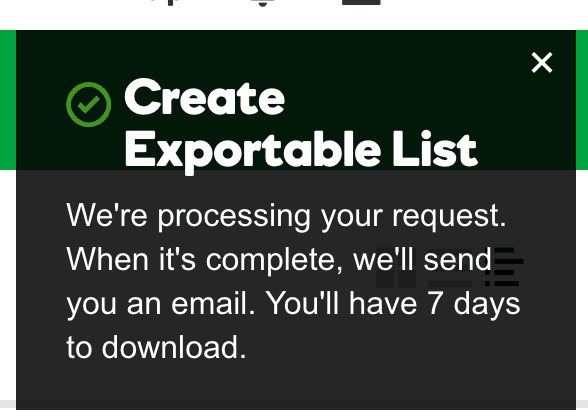
Note: each note created is available for download ONLY 7 DAYS. Don’t think the note will exist forever since it won’t!
Ought to an email notification not arrive in your inbox, then go back to the “Domain Manager”, and hover over the “More” and select “Manage Exportable Lists”.
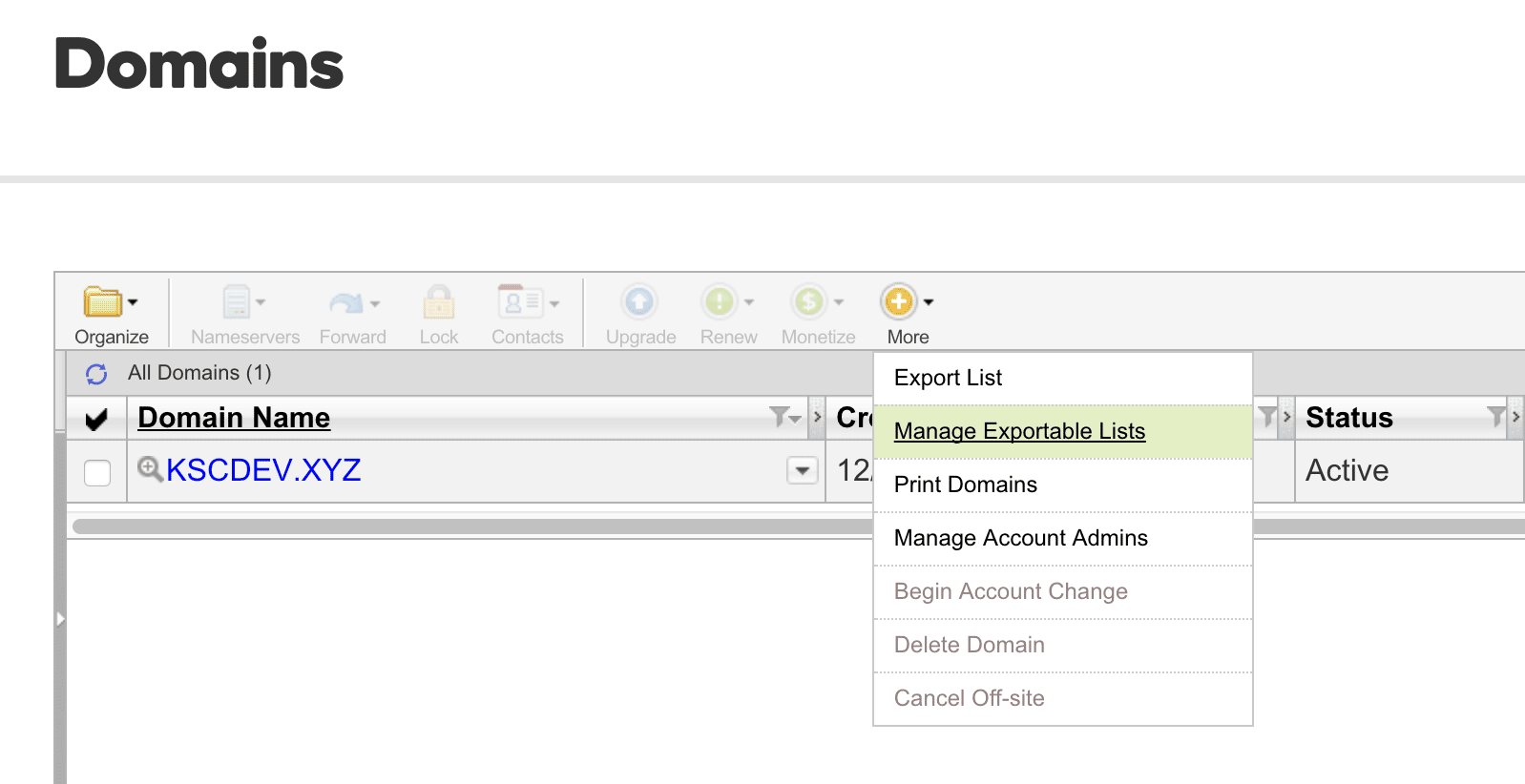
Clicking on “Manage Exportable Lists” displays the “Exportable List Manager” and a list of notes created via a table with the following headings:
- Name
- Create Date
- Status
- Size
- List
- File Type
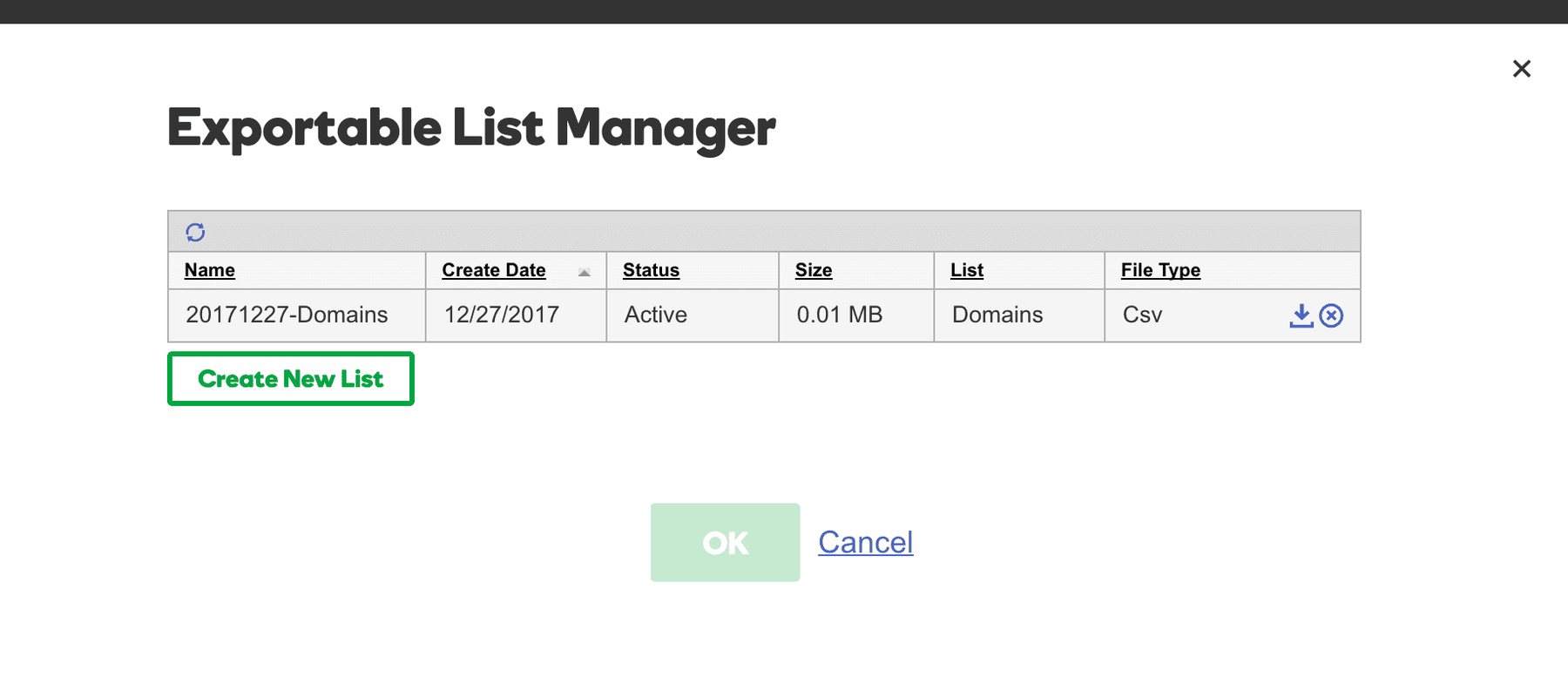
In the “File Type” column, note that there are two distinct icons, one with a downward arrow indicating download the note and the other a circle containing a “x” indicating delete the note. Click the icon with the downward arrow to download the note.
If the note were passed the allotted 7 days, then the note would no longer be visible and the following screen would be displayed if there were no notes.
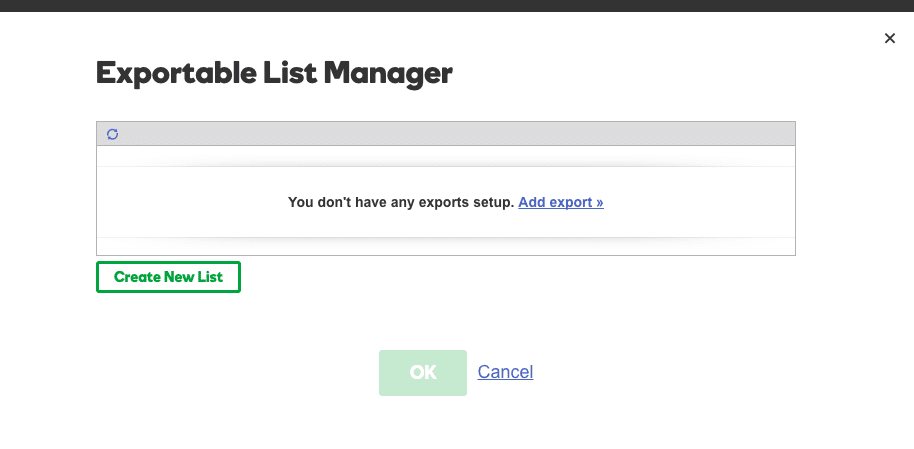
It’s worth noting that managing and creating notes can also be executed from the “Exportable List Manager” as indicated with the “Create Fresh List” button and “Add Export” text link.
Nevertheless, once the desired note has been downloaded, then open note using Microsoft Excel, Mac Numbers, or a text editor of your choice (first two options recommended). I’ve chosen to open my Whois search note using Mac Numbers.

For the sake of keeping this tutorial simple, I’ve hidden most of the columns with the exception of the “DomainName” column and following columns:
- WhoisCountsPrevDay – the current number of Whois counts for the previous day
- WhoisCountsPrevWeek – the current number of Whois counts for the previous week
- WhoisCountsPrevMonth – the current number of Whois counts for the previous month
- WhoisCountsCurrDay – the current number of Whois counts for the current day
- WhoisCountsCurrWeek – the current number of Whois counts for the current week
- WhoisCountsCurrMonth – the current number of Whois counts for the current month
Although I monitor and record all columns on a monthly basis via a database, I pay close attention to the monthly Whois search numbers over a rolling 12-24 months when considering domain renewals.
And that’s it for this tutorial!
Closing Thoughts
Again, take Whois searches with a grain of salt when considering your own domain portfolio renewal process.
As I stated earlier, Whois searches often included automated lookups, which makes it difficult to understand human and non-human Whois searches.
Also, results may vary depending on TLD. .Com and .net domains operate on a “thin Whois” system in which Whois lookups have to ping the registrar (in this case GoDaddy). Some other TLD lookups don’t involve the registrar so GoDaddy might not have the data.
In addition, it’s worth noting that hand-registered domains, newly purchased domains, and transferred domains likely have spikes in Whois searches the first 1-2 months, which is why I prefer and recommend reviewing data over a rolling 12-24 month period.
Nevertheless, tracking Whois searches for your domain portfolio could prove to be a value-add activity executed in conjunction with varying renewal factors used to gauge a domain’s renewal status.
Do you track Whois searches for your domain portfolio, or use Whois searches as a determining factor for renewing?